Introduction
Overview
Teaching: 30 min
Exercises: 10 minQuestions
What is static web content?
Why should I use GitHub or GitLab Pages to create my website?
Objectives
Explain what a static site generator does.
Choose the appropriate tool for a website/project.
How Websites Work
When we use a web browser to visit a page on the World-Wide Web, the browser asks for information from a server - a computer storing the data relevant to the site and configured to receive and respond to requests for that data. Assuming there were no problems at this stage (e.g. asking for a page which doesn’t exist, or being unable to reach the server), our browser receives and interprets this information to render and display the webpage on our screen. (A web developer would probably be horrified to read such a gross oversimplification, which is just one reason why web developers are not the target audience of this tutorial.)
The page displayed by the web browser is the result of combining HTML - a hierarchical format describing the structural elements of the page and their raw content - with CSS - an ordered set of styling instructions telling the browser how the content should be organised and formatted - and any images that should be embedded in the page. Other information received from the server, but not displayed by the browser, includes metadata, cookies, and other non-visible elements in the HTML - information about the site that could be relevant for a computer but probably isn’t interesting to a human (there are exceptions to this) - and scripts that the browser may run to do something in response to various triggers.
Hello World in HTML
When learning a new programming language,
you may often find a reference to the popular Hello world.
These examples typically capture the simplest code that
can produce and display the Hello world on screen.
As HTML requires certain tags to be present and almost always in matching pairs (open <tag> and closing </tag>),
HTML documents tend to get verbose rather quickly.
The simplest, valid HTML Hello world is:
<!DOCTYPE html>
<html>
  <head>
    <title>Page title</title>
  </head>
  <body>
    <p>Hello World</p>
  </body>
</html>
So as you can imagine, writing long HTML documents by hand is rather painful. Notice that we didn’t specify anything about how and where the text should be displayed.
To achieve this we would additionally need to include stylized tags or Cascading Style Sheets (CSS) instructions. If you do not provide CSS instructions (either inside your HTML document or as a separate file), a web browser will make a best guess regarding the layout of HTML elements on the page based on its defaults.
The Many Tags in HTML
In the
Hello worldexample above 5 different tags are used (html,head,title,bodyandp) in their open<>and closed</>form. We see also the specialdoctypetag that indicates the format and version of the document, in this case, HTML(5).Other examples include frequently used tags for structural elements such as
div,span,nav,section; stylized tagsi/em,b/strongandufor italics/emphasis, bold and underlined text; headings numbered fromh1toh6for titles and progressively smaller sub-titles;img,video,audioto embed rich media; and the importantatag (anchor) used to link to sections in the same or other documents.The list of valid HTML tags is rather extensive, covering a rich range of features powering today’s world wide web.
Exercise: Writing Basic HTML
Given the stylized text:
Hello World
write the HTML that will produce the same result. Hint the big font is achieved by use of a heading.
Solution
<h1><em>Hello</em> World</h1>
Static vs Dynamic Sites
Sites consisting of pages whose content doesn’t change after that initial information is received by the server are referred to as static (for example, a website containing one’s CV). Conversely, sites whose pages can be updated after loading, with information continuing to be passed between browser and server, are called dynamic (for example, pages showing current date and time or shopping baskets, Twitter or Facebook pages, which might be updated between each two page refreshes). This lesson focuses on static sites and tools that can be used to create them, known as Static Site Generators.
One of the advantages of using static site generators is that they remove the need for us to manually produce a lot of HTML, allowing us to focus on the human-readable content we want our pages to contain. However, we still need a way to tell the generator how we want our content to look when it’s displayed in the browser. For that, we will use a tool called Markdown, which we’ll learn about in the next episode.
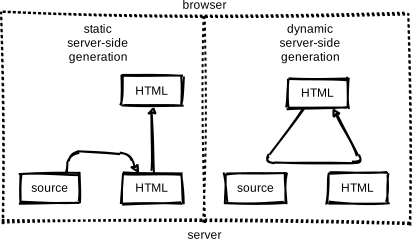 Figure 1.1: Page Generation Alternatives. This figure is a modified version of the original published in JavaScript for Data Science, and is reproduced here with permission from the author.
Static-generated sites are a great choice when the information you want to display on a website is the same regardless of who visits your site and when, and if the content of your pages is unlikely to need to change very often. This makes Static Site Generators a good choice for sites that provide documentation or lesson content like this page: the aim of the page is to deliver the same information to every visitor. The visitor can arrive, (hopefully) find and read what they need, and leave feeling happy and fulfilled.
Dynamic sites provide a lot more possibilities for providing interactivity and personalised or topical content. But creating them is a degree more complicated and also places considerable additional burden on the server, not least in terms of computational requirements and security considerations. Among other things this means that, unlike with static pages (see the rest of this lesson), you’re unlikely to find cost-free platforms to help you deliver dynamic content.
Exercise: The Perfect Tool for the Job
Given the following types of websites, reason if a static site generator is an appropriate solution to implement them.
- (1) A personal website with About and Projects sections
- (2) A forum or discussion platform
- (3) A community blog or news website
- (4) A search engine (such as google.com)
- (5) A wiki (such as wikipedia.com)
- (6) An online book
Solution
- (1) personal website: In most cases, Yes. This kind of content is typically written/edited by one person and meant to have a read-only access to visitors.
- (2) forum or discussion: Most likely No. Such website requires interactivity and ways to identify who wrote what content.
For questions 3 and 5 the answer is both Yes and No depending on the requirements and necessary functionality.
- (3) blog/news: A simple blog or news website, maintained by a small set of users, is perfectly achievable by using a static generator. For very large groups of content creators or if access to articles needs to be controlled individually, using a static generator will lead to difficult technical challenges.
- (4) search engine: Most often No. Implementing something as sophisticated as Google’s search would be close to impossible with a static generator. There are ways to have a simple engine that searches across all pages produced by a static generator using indexing and making clever use of browser features but this approach has many limitations.
- (5) wiki: A simple wiki is perfectly doable with a static generator (e.g. GitHub Wiki Pages), however it becomes limiting as soon as its content needs to be edited or discussed by many users, as is the case of Wikipedia.
- (6) online book: Definitely Yes. Static generators are perfect for this type of website. They typically provide ways to avoid repeating content (variables and templates), automatic creation of a Table Of Contents, among other goodies.
GitHub Pages
If the site you want to create is a good match to the strengths of a static site generator - it’s relatively small, will be updated relatively infrequently, and the content does not need to be personalised to the visitor - then creating it with GitHub Pages is a good option. GitHub Pages is a system allowing users to create and serve websites directly from their GitHub repositories. The service is free for public repositories and simple pages can be created and served with very little configuration required.
Behind the scenes GitHub Pages uses a static site generator called Jekyll, which we’re going to learn about later in this lesson. First, we need to learn more about how to author and format the content of our pages, before configuring GitHub to display this content as a website.
Setting Up a Repository
Before we get into working with Markdown we must first create a
repository to work in.
This repo (short for repository) is similar to a folder on your computer, the main differences
being that the folder lives on the web in GitHub/GitLab (though you can
also keep a copy on your computer if needed) and that folder is using
a version control software called git to track changes to the files.
For our purposes we will mostly be ignoring the version control software,
though it can be handy if you need to revert to old versions
(see Software Carpentry - Version Control with Git for an introduction).
In this lesson we will be working with this folder on the web to control
the website we will be creating.
Setup a GitHub account
Before you can create a repo, you will need to create a GitHub account
Make sure to login with your GitHub account and visit https://github.com. Click the green “New” repo button on the left hand side of GitHub:

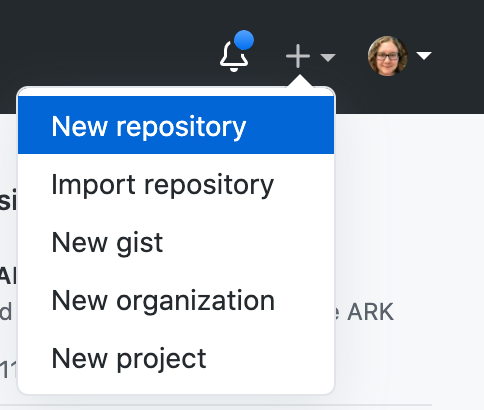
or click the “+” menu in the upper righthand corner and choose “New Repository”.
Next you will need to fill in some info about your repository.
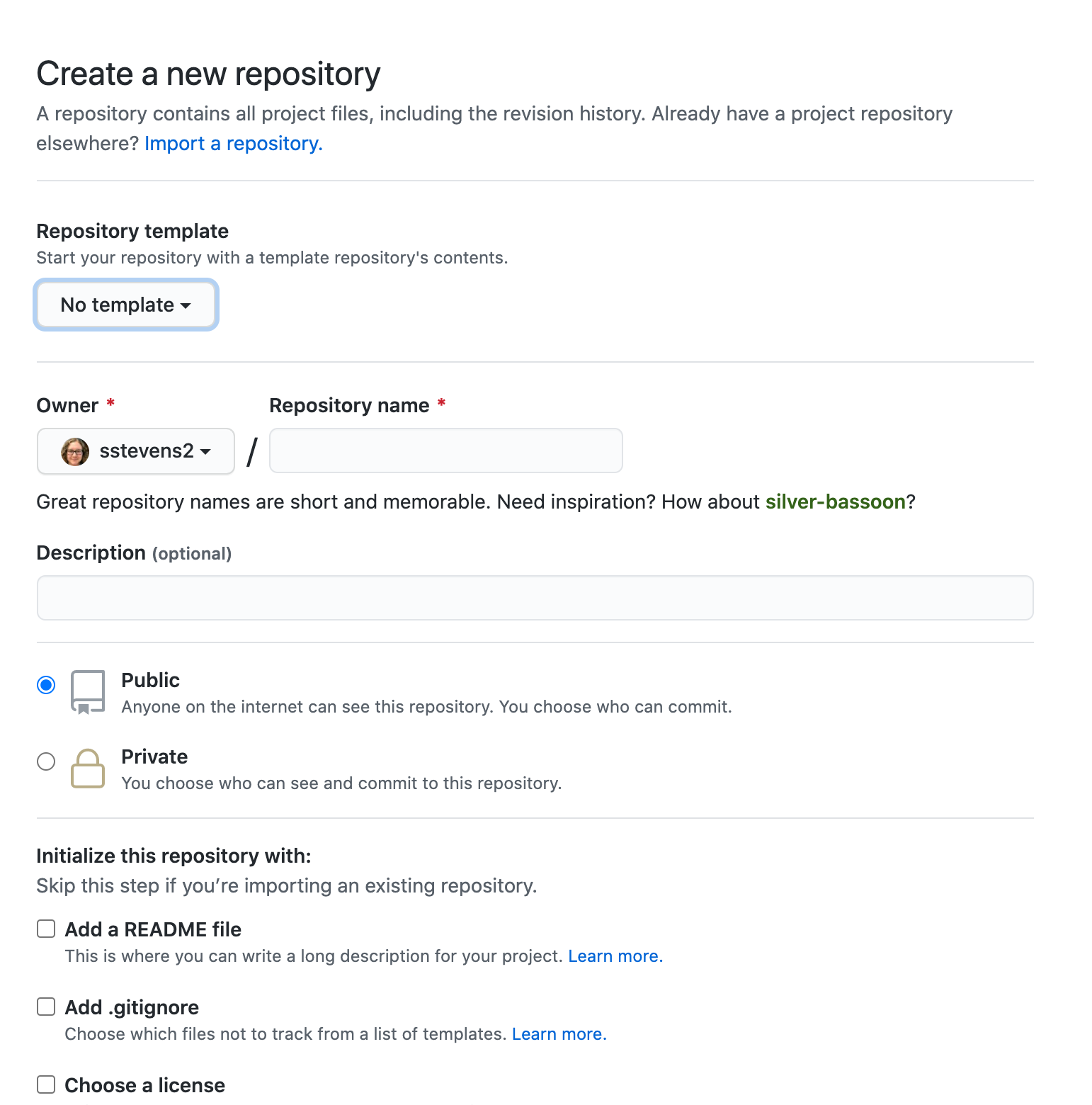
In this lesson, we will be working on a general group website.
You can imagine this website may be for your lab group, a specific project group,
or another group you work with.
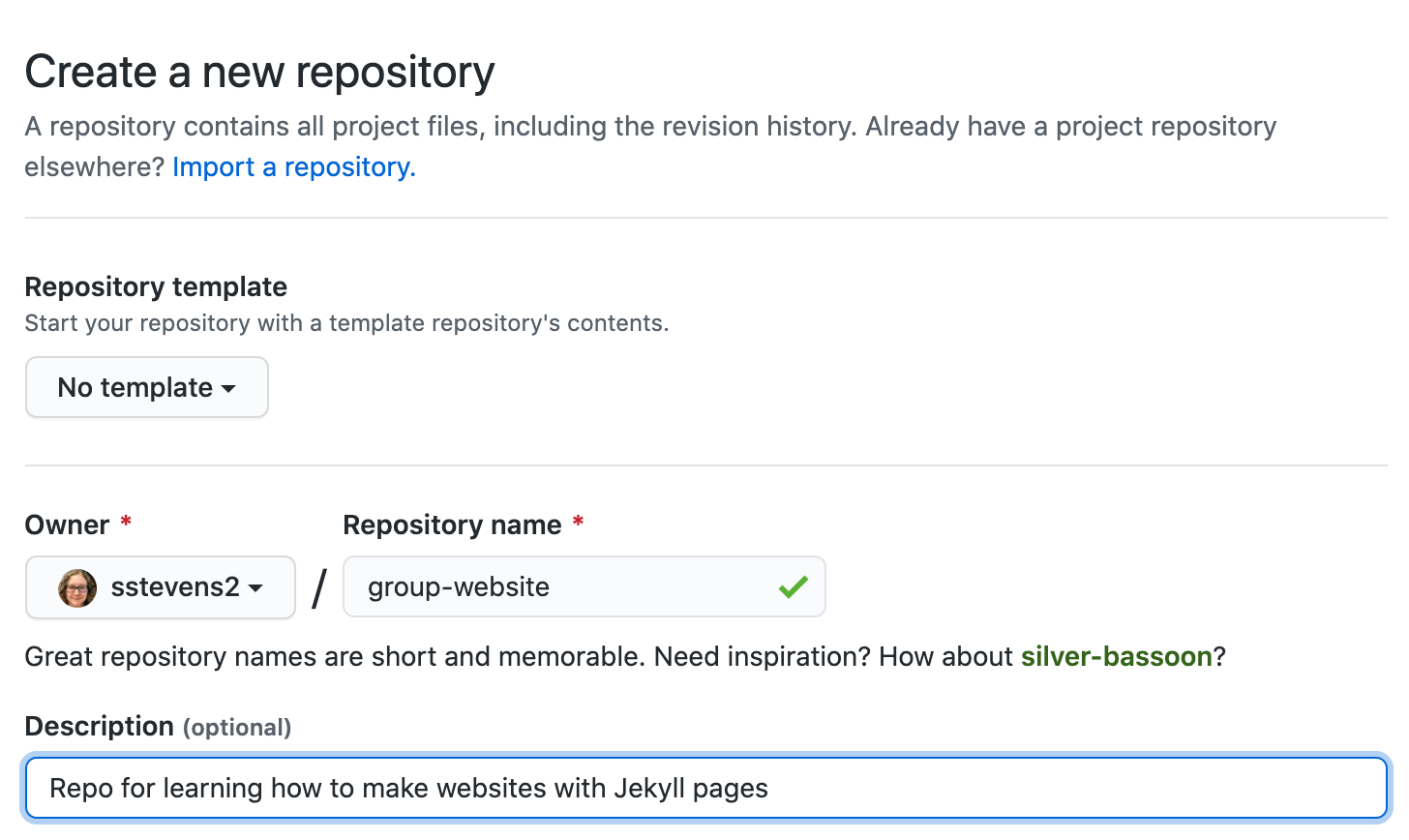
Under the “Repository name” field type group-website.
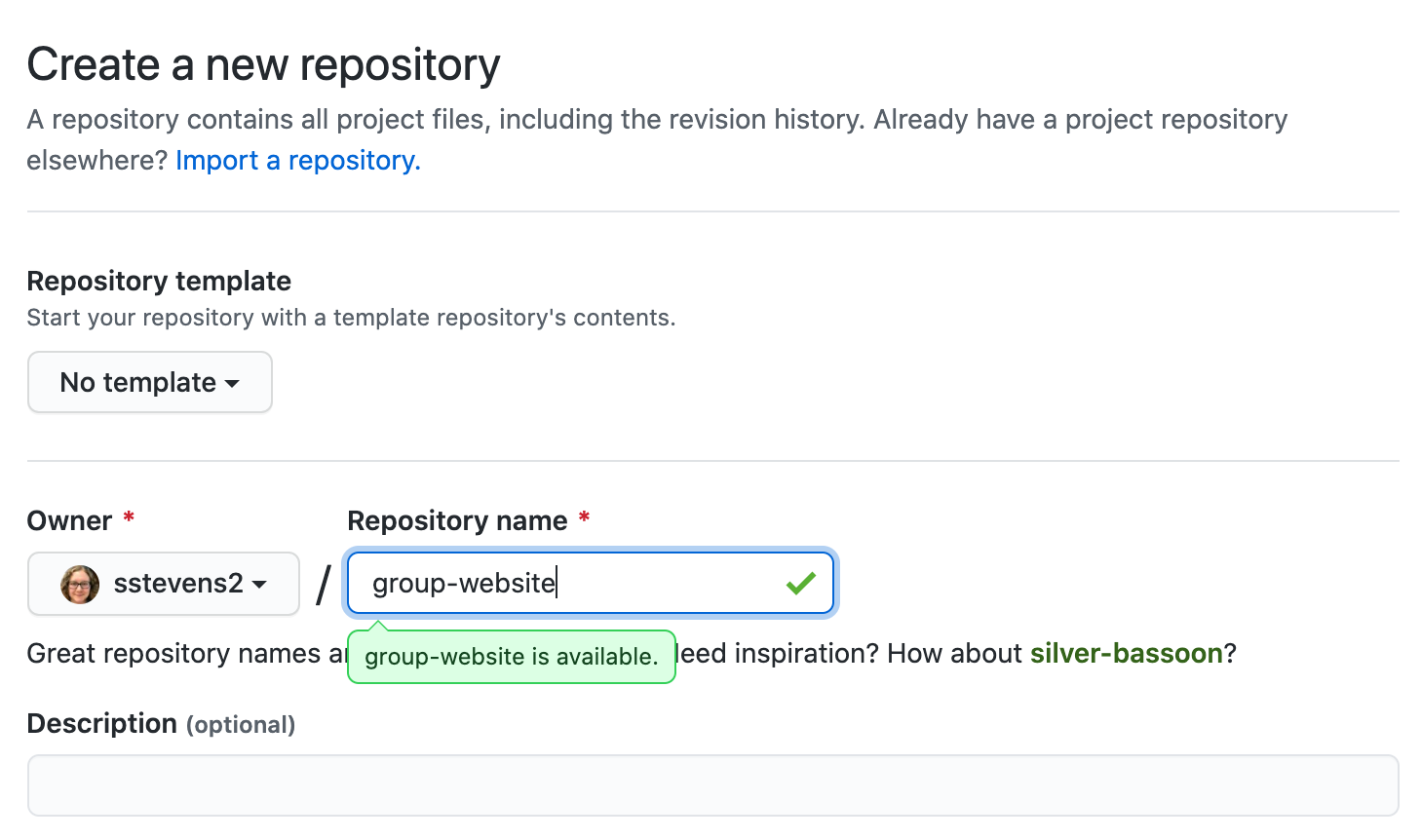
We can also add a description (for instance Repo for learning how to make websites with jekyll pages) so we know what this repo is when we find it again after the workshop.
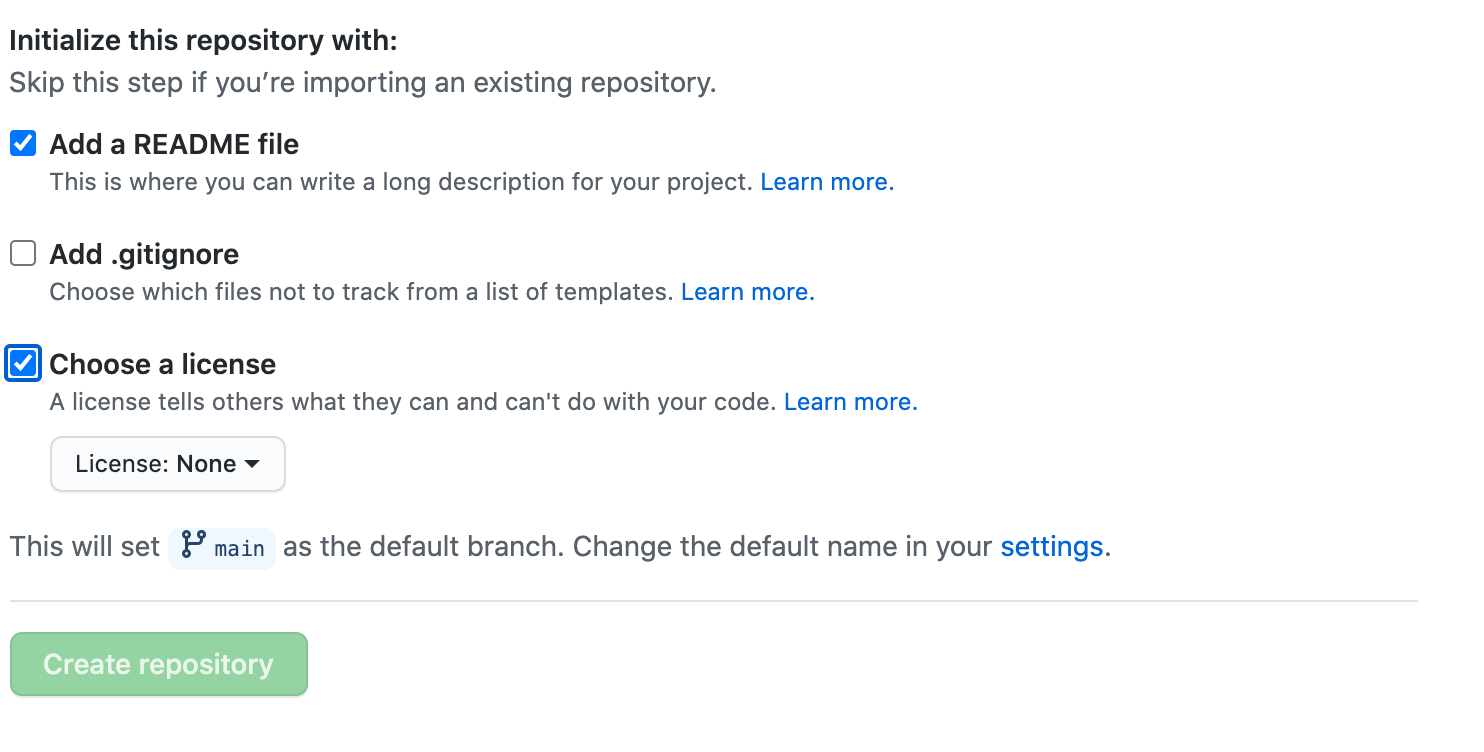
Under the “Initialize this repository with:” section we will check Add a README file
and Choose a license. It is good practice to have a README file that gives more information
about your repo and to set a license for your work.
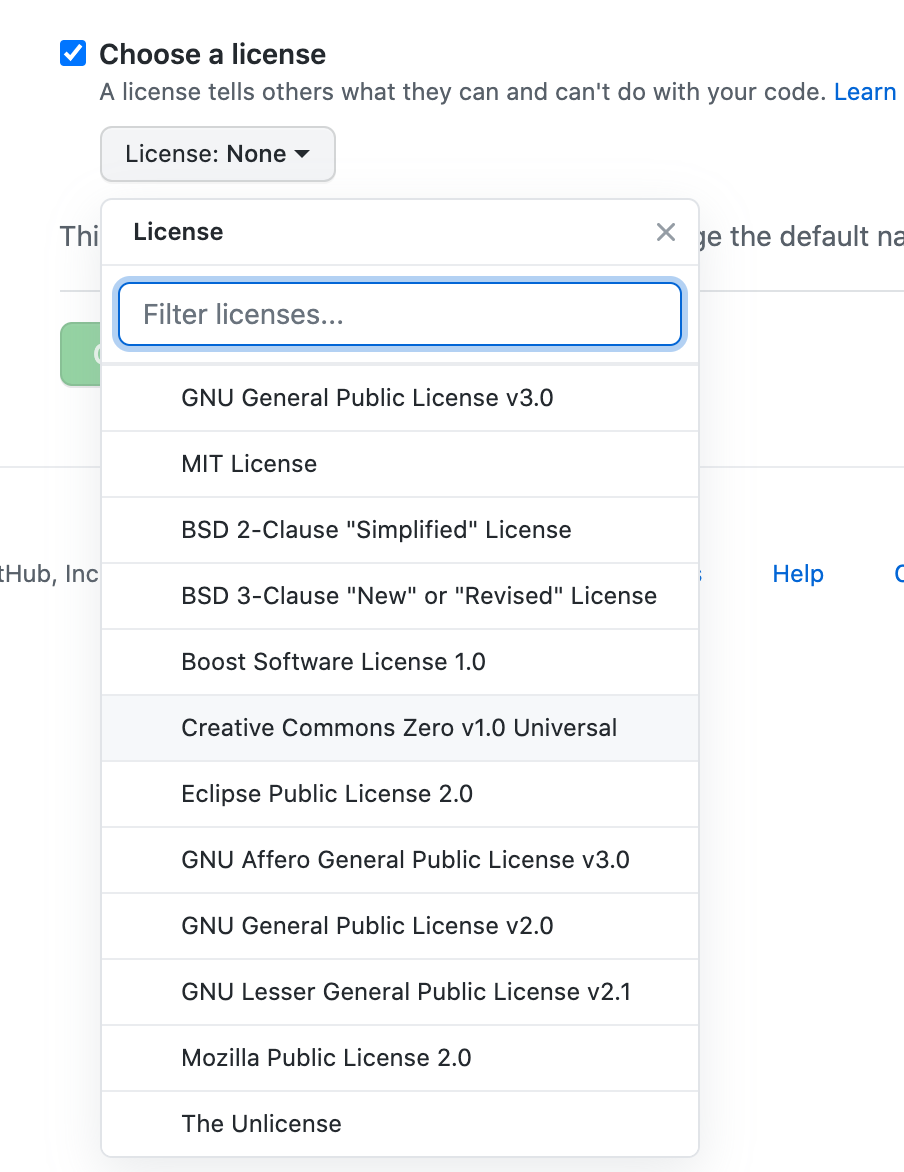
for this example repository we’ll use the Creative Commons Zero v1.0 Universal (CC0) license,
which allows anyone to re-use and adapt the content of the repository without restriction,
but you may want to consider choosing something more restrictive when you’re building
your own website.
Checkout Other Licences
You may want to checkout this lesson or GitHub’s license documentation for more information about possible licenses.
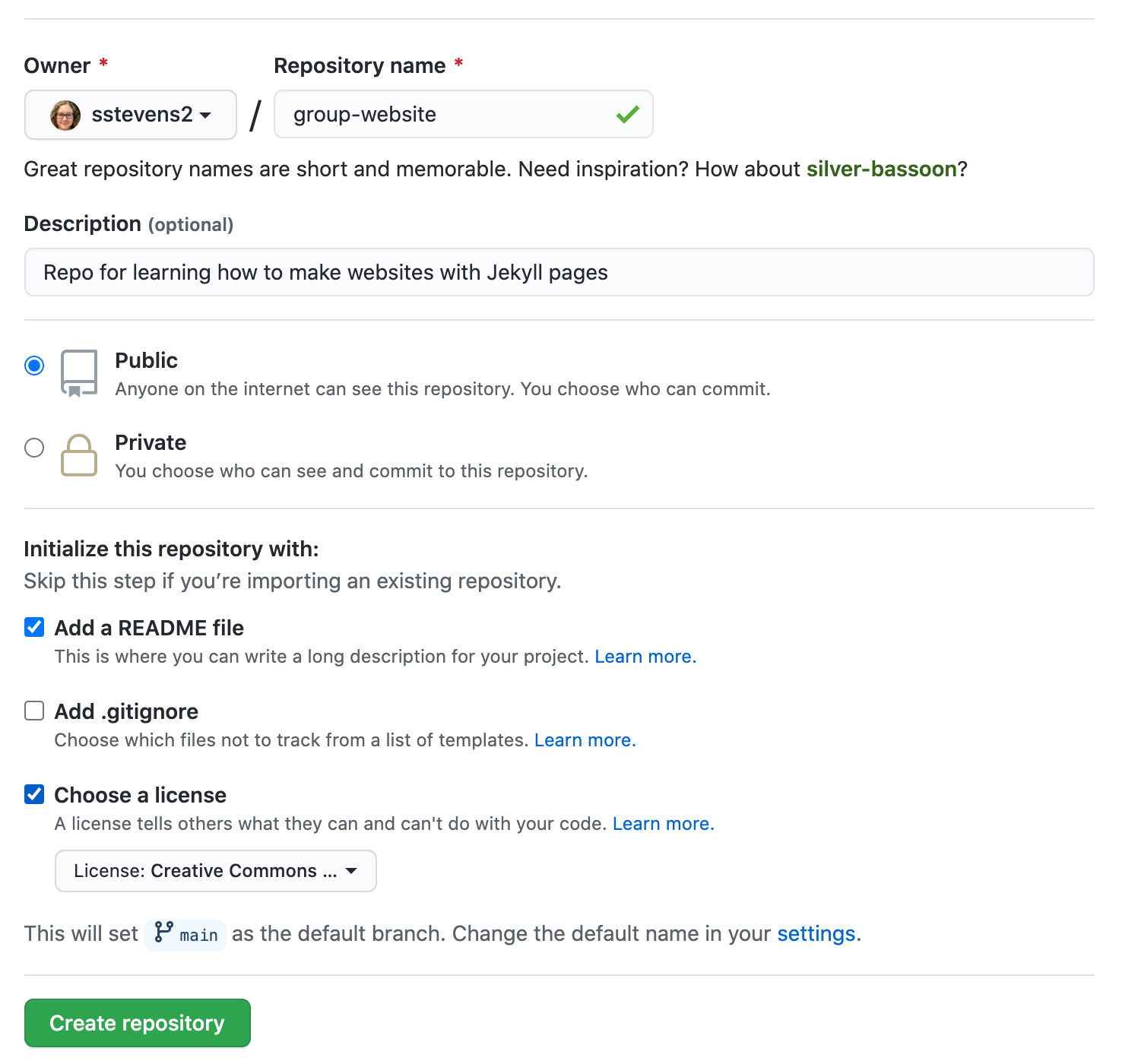
Once you’ve finished these steps you can click the “Create Repository” button to finish creating the repo.
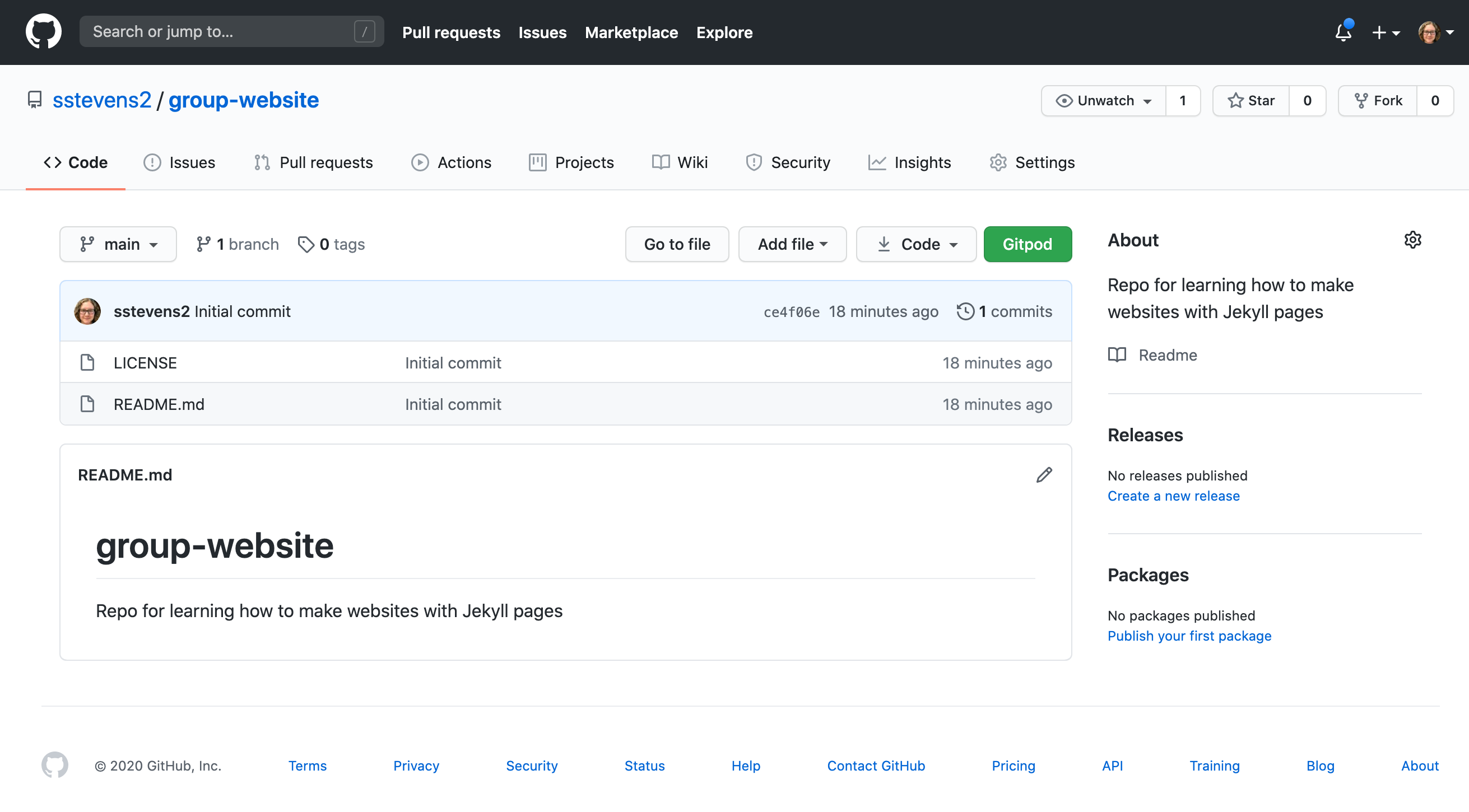
GitHub will then setup the repo and it should look like the following screenshot.
Key Points
A static site generator combines page-specific content with layout elements and styling information to construct individual static webpages.
GitHub Pages/GitLab Pages is a good choice for people who are already familiar with Git and GitHub/GitLab.
This approach can be used to create a relatively small website/blog on a limited budget.
Authoring with Markdown
Overview
Teaching: 20 min
Exercises: 15 minQuestions
How can I write content for my webpages?
How do I link to other pages?
Objectives
Create simple pages with formatted text
Markdown
Markdown is a lightweight markup language, i.e. a convention for adding style information to textual content. As the name Markdown indicates, the syntax elements of this language are shut down to a minimum. Having a rather minimalistic syntax, text formatted in Markdown is comparably readable. This might be one reason for Markdown having become the language of choice for formatted user input on websites like, for example:
Where to Start Writing Markdown?
A lot of tools for rendering Markdown source code exist.
Rendering is the process of generating a nice view of the content
using the style information included in the source text.
Chances are high, your editor can do this.
As we are working towards authoring websites using Jekyll and GitHub pages,
we will use GitHub straight away for learning the basics of Markdown.
The GitHub project you created in the last episode contains a file README.md.
The picture below shows the projects default view.
This view includes a rendered view of the content inside the file README.md.
Your project should look quite similar except for the red circle around the pencil symbol.
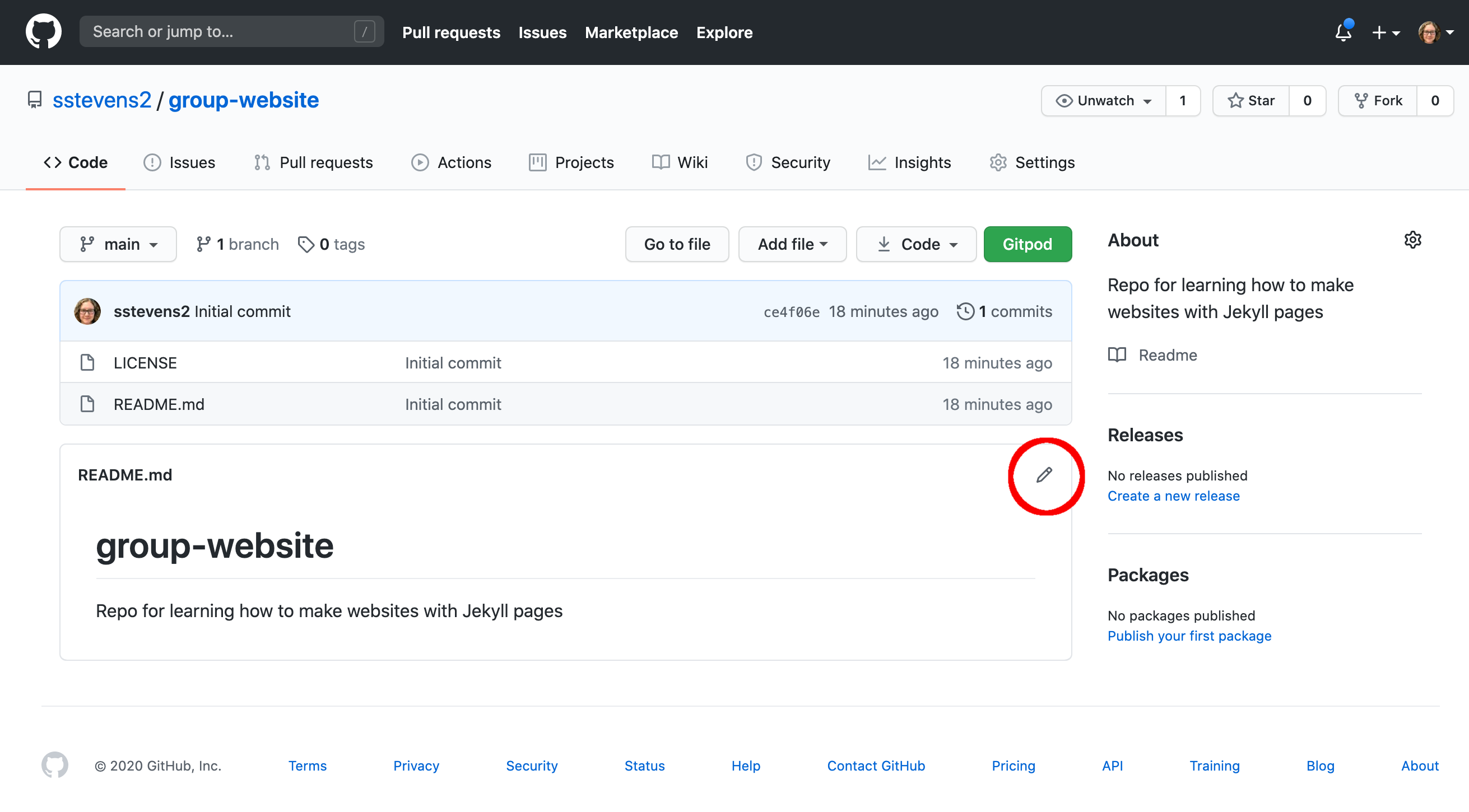
You can click on that pencil symbol to open an editing interface of your projects README.md file.
Once you’ve clicked the pencil symbol, GitHub will open that file in the editing interface.
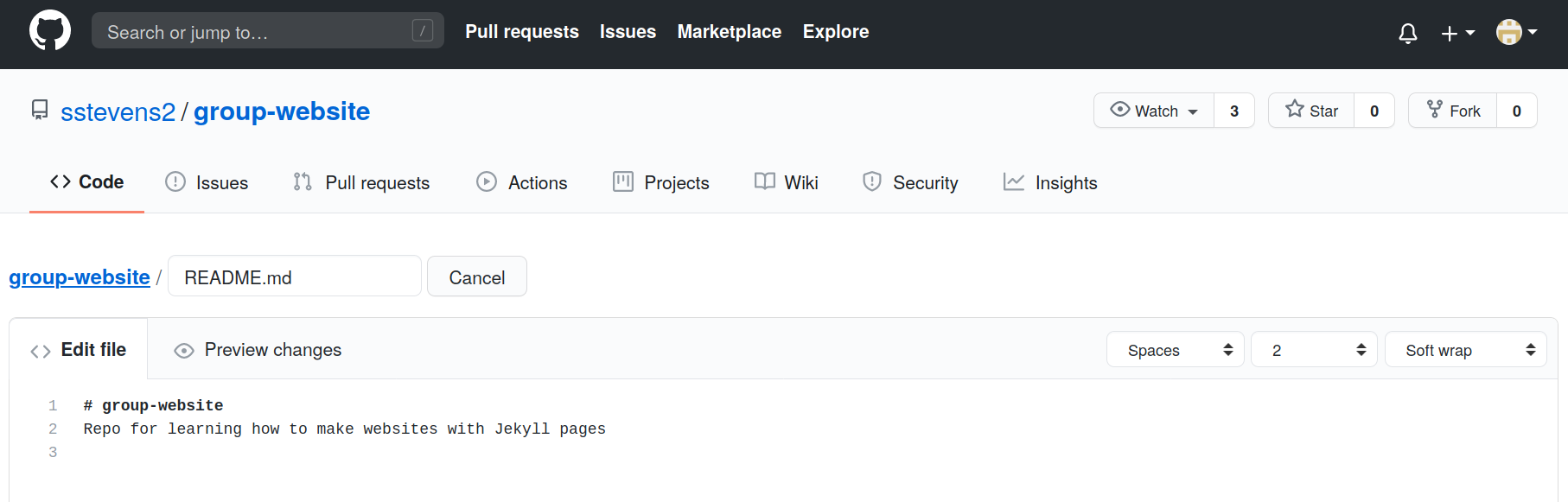
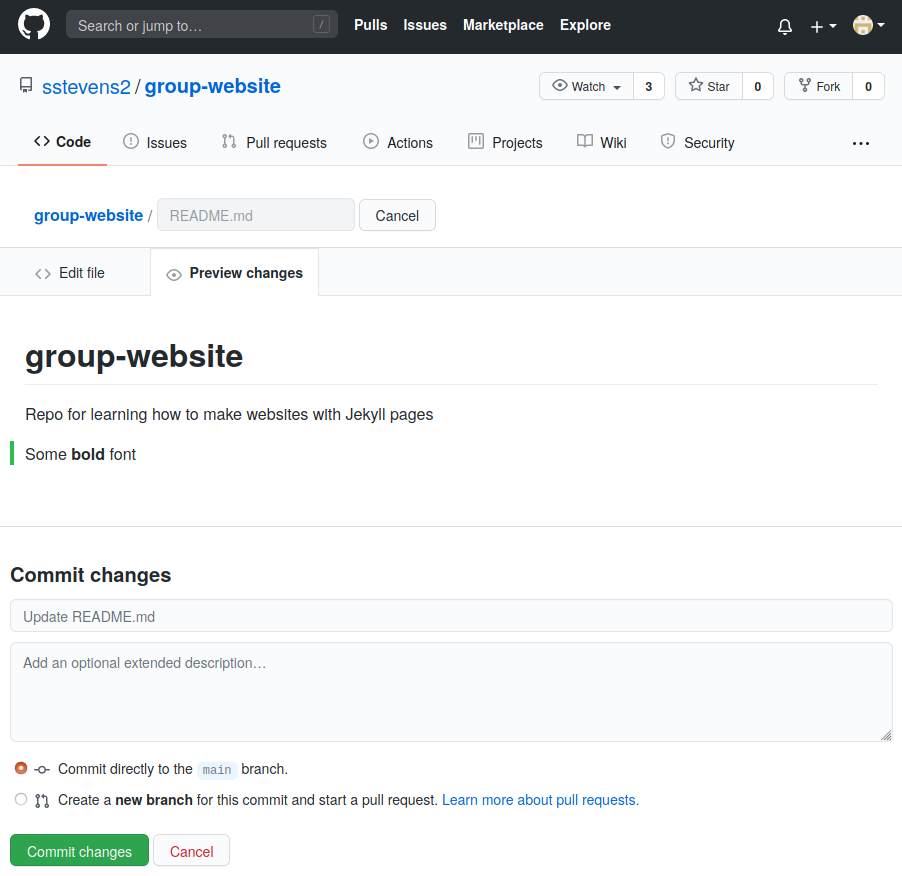
You can change the content and have a look at the rendered view by clicking the Preview changes tab.
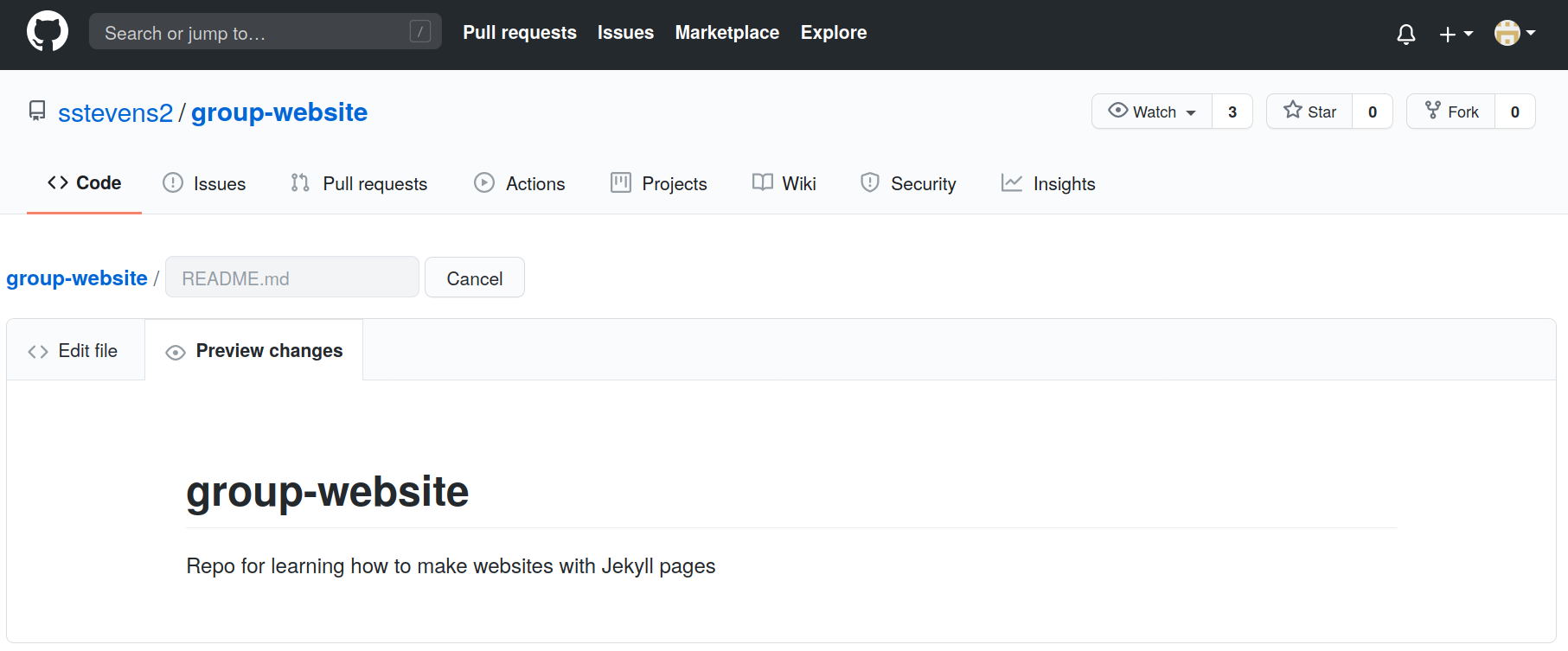
Let’s add Some **bold** font and see what happens when we preview it using the preview tab.
If new sections were added you will also find green vertical bars visually highlighting the new content.
To save the content to the file README.md, scroll down a bit and you’ll see a Commit changes menu
where you can commit your changes.
After having changed something, the commit menu looks like this:
Writing a Commit Message
A commit message is a short, descriptive, and specific comment that will help us remember later on what we did and why. You find more about writing commit message in this section of the Git-novice lesson.
Writing Markdown
Now that we know about the editing interface and preview tab of our projects README.md
we can use it as a text editor and investigate selected Markdown features.
Our README.md already contains vanilla text and
two formatting features:
- Heading
# group-website - Emphasis using
**bold**.
Let’s learn some more Markdown by adding some formatting and see what happens when we preview it using the preview tab.
Add the following to your README.md file.
# group-website
Repo for learning how to make websites with Jekyll pages

## Learning Markdown

Vanilla text may contain *italics* and **bold words**.

This paragraph is separated from the previous one by a blank line.
Line breaks
are caused by two trailing spaces at the end of a line.

[Carpentries Webpage](https://carpentries.org/)


### Carpentries Lesson Programs:
- Software Carpentry
- Data Carpentry
- Library Carpentry
You can then click the preview tab again to see how the formatting renders.
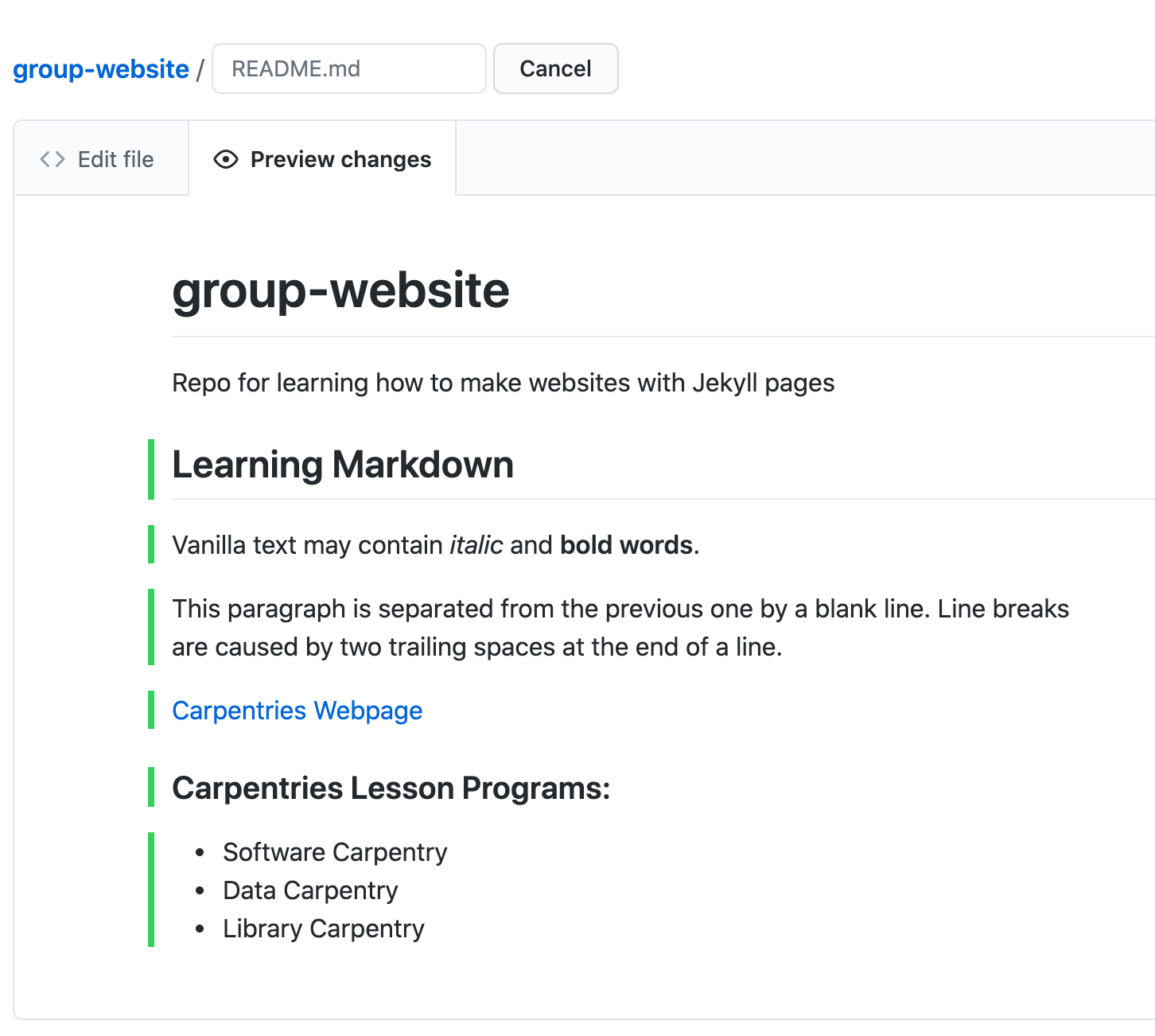
Markdown trailing spaces are meaningful
In the example above there are two spaces at the end of
Line breaks. These introduce what is called a hard line break, causing that paragraph to continue in the next line by adding a<br/>to the generated HTML.If you break the line in a markdown file but don’t include the two trailing spaces the generated HTML will continue in the same line without introducing a
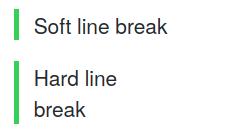
<br/>. This is called a soft line break.In some cases you may find that soft line breaks do introduce a
<br/>. This can happen when using different markdown flavors.See for instance:
Soft line
break

Hard line
break
That produces:
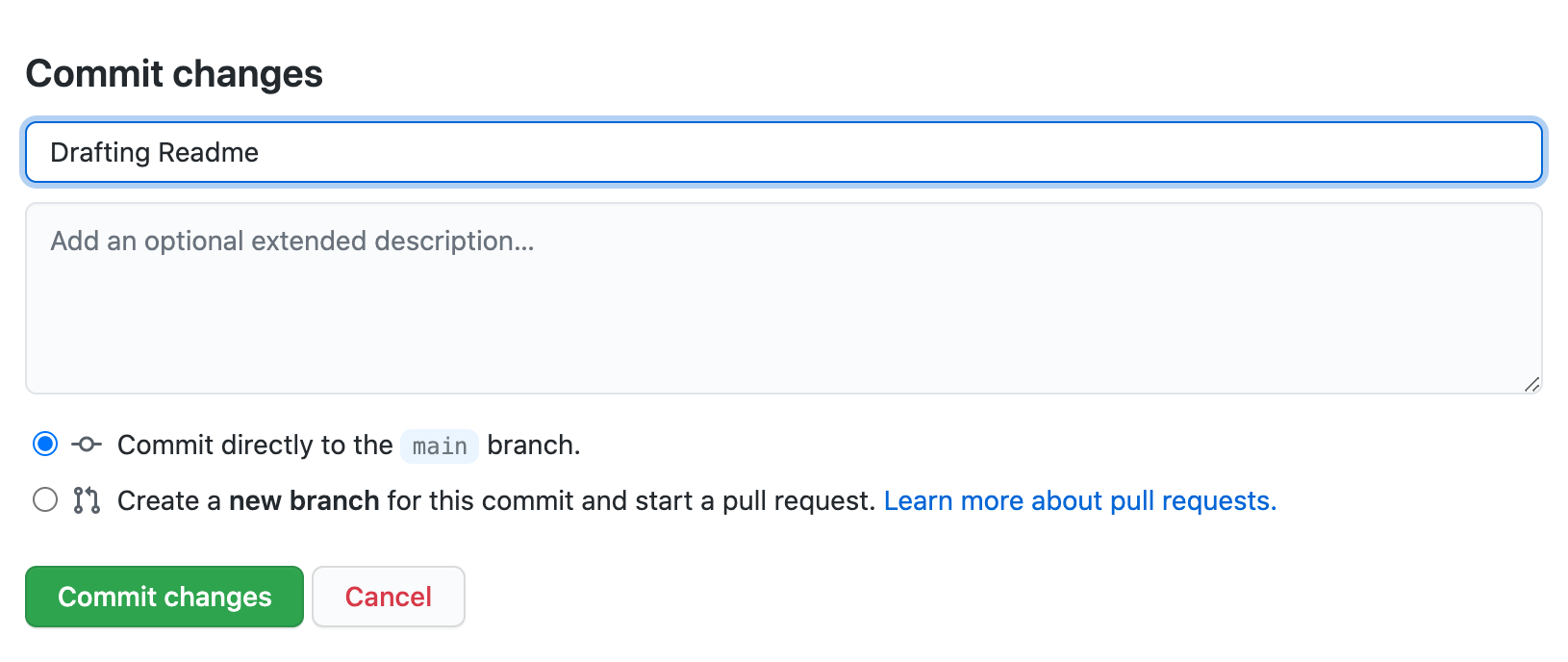
To keep this addition to our README.md we need to commit these changes to save them.
Scroll down to the bottom of the page, add a commit message if you wish, and then commit to the main branch.
Let’s do an exercise to try out writing more markdown.
Exercise: Try Out Markdown
Use this cheatsheet to add the following to your
README.md:
- Another second level heading
- Some text under that second level heading that includes an link and
strikethroughtext.- A third level heading
- A numbered list
- Bonus: Add this image https://github.com/carpentries/carpentries.org/blob/main/images/TheCarpentries-opengraph.png
Example Solution
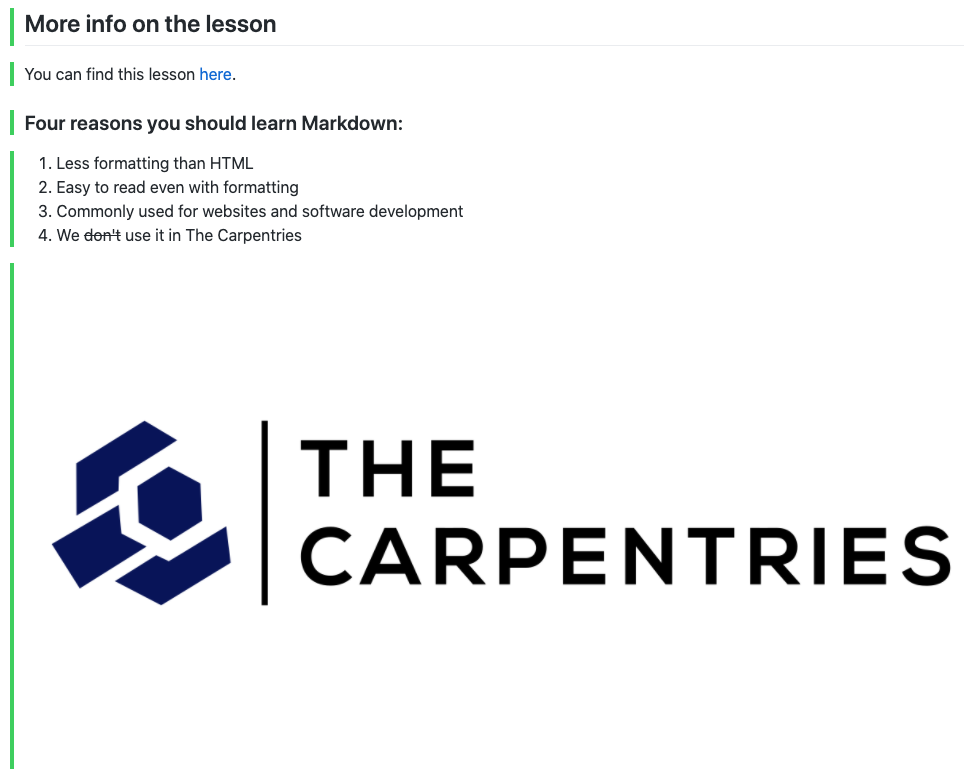
For example your markdown might look like the following:
## More info on the lesson You can find this lesson [here](https://carpentries-incubator.github.io/jekyll-pages-novice/). ### Four reasons you should learn Markdown: 1. Less formatting than HTML 2. Easy to read even with formatting 3. Commonly used for websites and software development 4. We ~~don't~~ use it in The Carpentries 
Reference-Style Links
Up to now, we have used
inline style linkswhich have the URL inline with the description text, for example:[Carpentries Webpage](https://carpentries.org/)If you use a link more than once, consider using so called
reference-style linksinstead. Reference-style links reference the URL via a label. The label goes into square brackets[ ]right after the description text of the link and then later, usually at the bottom of the page, you can connect that label to the url it references to complete the link. This looks like:[Carpentries Webpage][carpentries] [carpentries]: https://carpentries.org/and helps to follow the DRY principle, avoiding redundant specification of information.
We will continue to use Markdown and learn more throughout the rest of the lesson.
Markdown Cheatsheet
Markdown offers a variety of formatting features. Have a look at this cheatsheet to get an overview or look things up.
Markdown Flavours
The initial description of Markdown was informal and contained certain ambiguities so over the years different Markdown implementations and syntax variations (often referred to as “flavours”) appeared to support various syntax features and extensions. As a consequence, the syntax from one variant may not be interpreted as expected in another - you have to be aware which one is being used by a particular platform. Here are a few well-known variants:
- GitHub-flavored Markdown (used on this lesson and by GitHub)
- GitLab-flavored Markdown (used by GitLab)
- Kramdown (a fast, Ruby, open source implementation released under the MIT licence)
Optional Exercise: Add Your Repository Details to CodiMD
If your instructors are using CodiMD (or HackMD or any other Markdown-based shared document platform) to take notes during this workshop, use Markdown syntax to add a link in that document to the repository you are using to follow along with this lesson. The link text should be your GitHub username, and the target your repository. Your instructors will direct you towards the appropriate location in the document to add your link.
More Markdown Features
Check out our Extras page on Markdown for a more comprehensive overview of Markdown, including how to create fenced code blocks and do syntax highlighting for various languages.
Key Points
Markdown is an relatively easy way to write formatted text
Hosting Websites on GitHub
Overview
Teaching: 20 min
Exercises: 20 minQuestions
How do I publish my page or a website on the Web via GitHub?
Objectives
Publish Markdown files as HTML on the Web with GitHub Pages
Now that you know how to create Markdown files, let’s see how to turn them into Web pages. GitHub has a service just for that called GitHub Pages.
Publishing a Website With GitHub Pages
GitHub Pages is a free website hosting service by GitHub that takes files (Markdown, HTML, CSS, JavaScript, etc.) from your GitHub repository which is configured as a website, optionally runs the files through a build process, combines them and publishes them as a website. Any changes you do to the files in your website’s GitHub repository will be rendered live in the website.
There are other services available to create and publish websites but one of the main advantages of GitHub Pages is that you can version control your website and therefore keep track of all your changes. This is particularly helpful for collaborating on a project website. GitLab offers very similar services but GitHub pages is the simplest approach.
Let’s continue from the GitHub repository we have created in the previous episode. One important file you should already have is README.md, which will become the homepage of your project website (until we add the index file later on).
Enabling GitHub Pages
In order to tell GitHub that your repository contains a website that needs rendering you need to configure GitHub Pages settings. You can do so from your repository’s Settings, as explained below.
You may have noticed that when we created our repository in previous episode, by default GitHub created a branch called main and stored our files there. We now need to tell GitHub Pages that this branch contains our website files.
What is a Branch?
You may have never heard about Git branches and wonder what they mean. A branch is one version of your project (the files in your repository) that can contain its own set of commits - you can have many branches (versions) of your repository. The default branch automatically created with a new github repository is called
main.
-
Click on the repository’s
Settingstab (the one with the little cog) as shown on the figure below: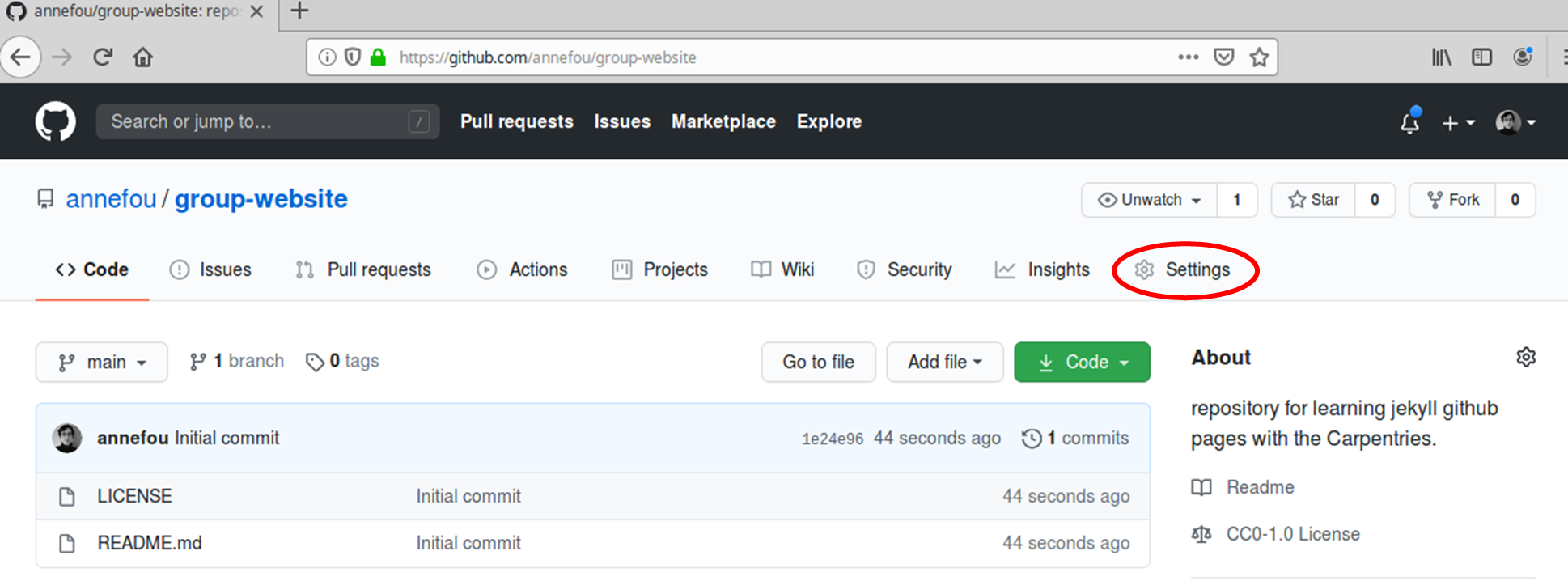
-
Scroll down to “GitHub Pages” settings. You will see that these are currently disabled. Select branch
mainto enable GitHub Pages for this repository and to tell GitHub which branch to use as a source.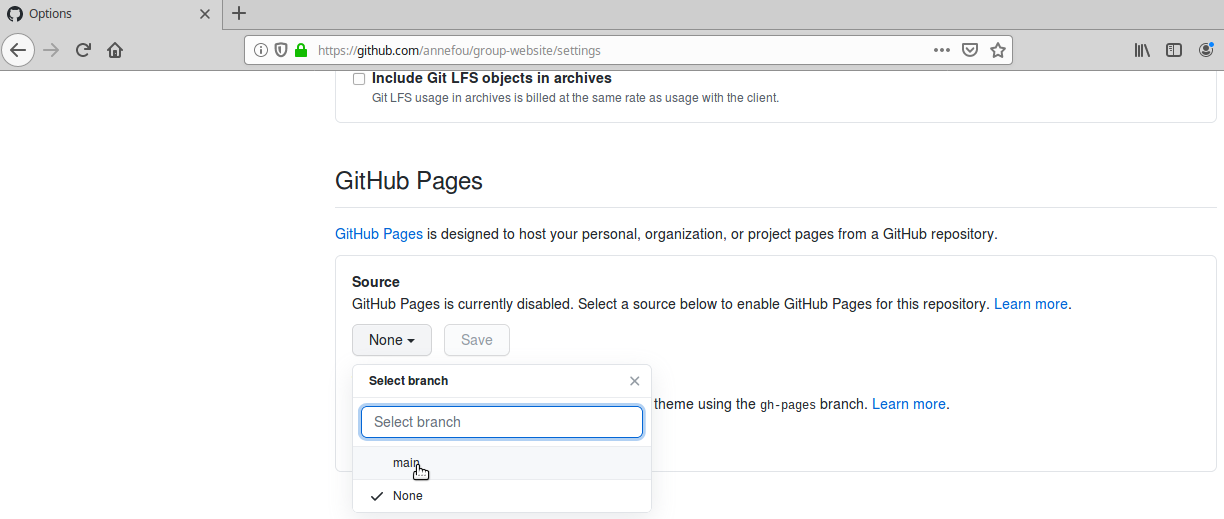
-
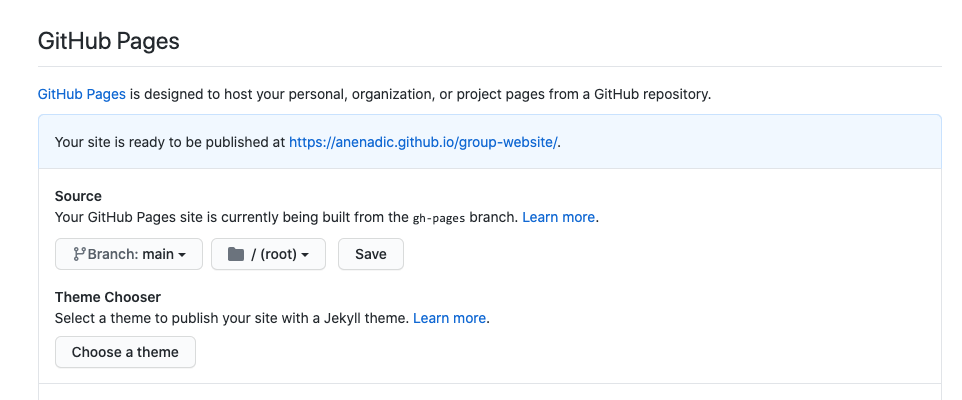
The link to your repository’s website will appear in the highlighted box above. If you click the link - your default browser will open and show your project website. If this does not happen, you should manually open your favourite web browser and paste the URL.
-
It may take a while (from a few seconds to a few minutes) for GitHub to compile your website (depending on GitHub’s availability and the complexity of your website) and it may not become visible immediately. You will know it is ready when the link appears in green box with a “tick” in front of the web address (as shown in the figure below).
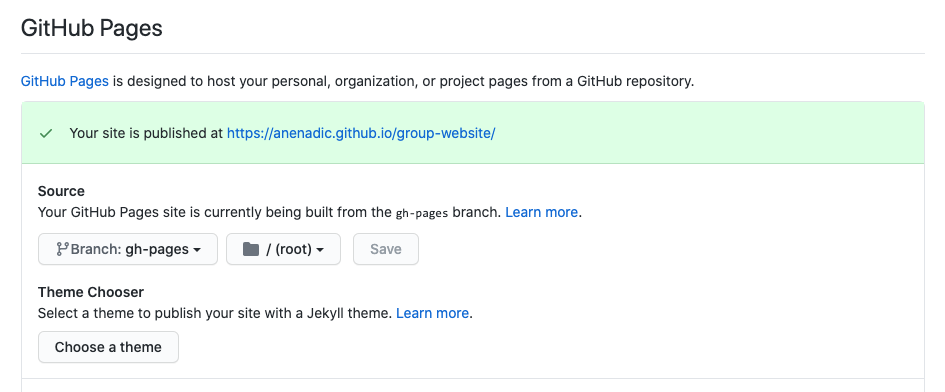
-
Once ready, you should see the contents of the
README.mdfile that we created earlier, rendered as a website.
Using Branch
gh-pagesfor WebsitesBy convention, GitHub Pages uses branch called
gh-pagesto look for the website content. By creating a branch with that name, you implicitly tell GitHub that you want your content published and you do not need to configure GitHub Pages inSettings. Once you creategh-pagesfrom your current branch (typicallymain, created by default when you created the repository), you can then choose to delete the other branch to avoid any confusion about where your content is stored.
Either of the above two approaches to turning a repository to a website will give you the same result - the gh-pages approach is perhaps more common as it favours convention over configuration.
Understanding GitHub Pages’ URLs
You may have noticed a slightly strange URL for your website appearing in that green box with a “tick” in front of it. This URL was generated by GitHub Pages and is not random. It is formatted as ‘https://GITHUB_USERNAME.github.io/REPOSITORY_NAME’ and is formed by appending:
- your GitHub username or organisation name under which the repository is created (GITHUB_USERNAME)
- ‘.github.io/’ (GitHub’s web hosting domain)
- the repository name (REPOSITORY_NAME)
Because the repository name is unique within one’s personal or organisational GitHub account - this naming convention gives us a way of neatly creating Web addresses for any GitHub repository without any conflicts.
Customising Domain
GitHub Pages supports using custom domains, or changing your site’s URL from the default ‘https://GITHUB_USERNAME.github.io/REPOSITORY_NAME’ to any domain you own. Check out the documentation on configuring a custom domain for your GitHub Pages site.
Making Your Pages More Findable
On the right hand side of your repository on GitHub, you can see the details of your repository under ‘About’. It is good
practice to update your repository details with a brief description. This is also a place where you can put
your repository’s Web URL (as not everyone will have access to your repository’s Settings to find it)
and add descriptive topics or tags about the content or technologies used in your repository or project.
You can edit the details of your repository by clicking on the little cog button as shown on the figure below.
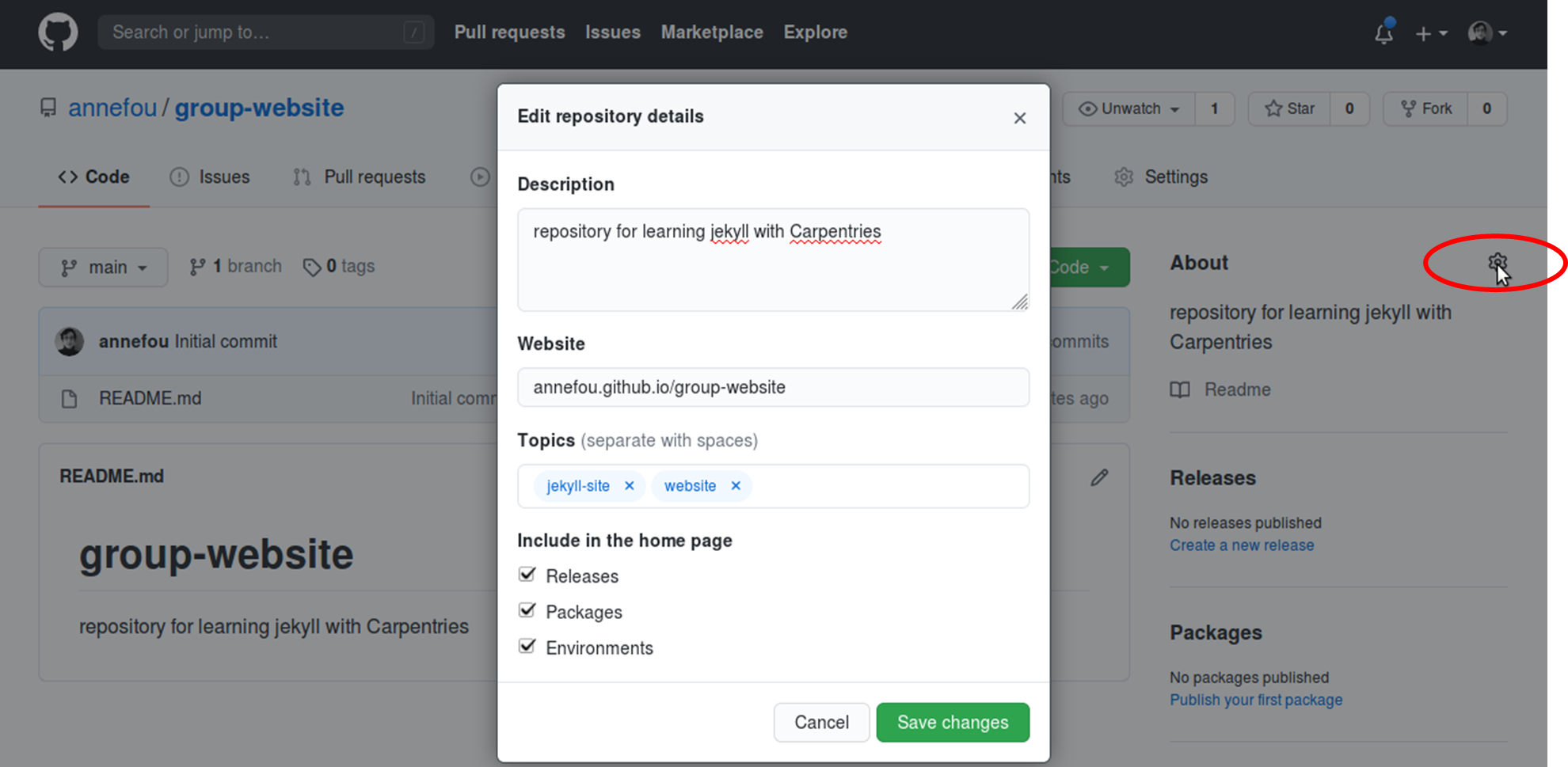
By doing this, you add a link to the repository’s website on your repository’s landing page and anyone (including yourself) can access it quickly when visiting your GitHub repository.
Index Page
Up to now, the content of your webpage is identical to what visitors to your repository on GitHub will see in the project’s README.md file. It is often better to have different content in the homepage of your site - aimed at visitors to the website - than in the README, which is supposed to provide information about the GitHub repository e.g. license information, local installation instructions, the structure and configuration of the repository, list of collaborators/authors, etc. By default, the homepage for a GitHub Pages website is built from a file called index.md: in the absence of a file with that name the “fallback” option is to use README.md, which is why your homepage is currently being built from that file.
To separate the contents of the repository’s README from the website’s homepage, create a new file called
index.md.
To create a new file from GitHub interface,
click the Add file button and select Create new file from the dropdown.

Next, type some text into index.md, as shown below.
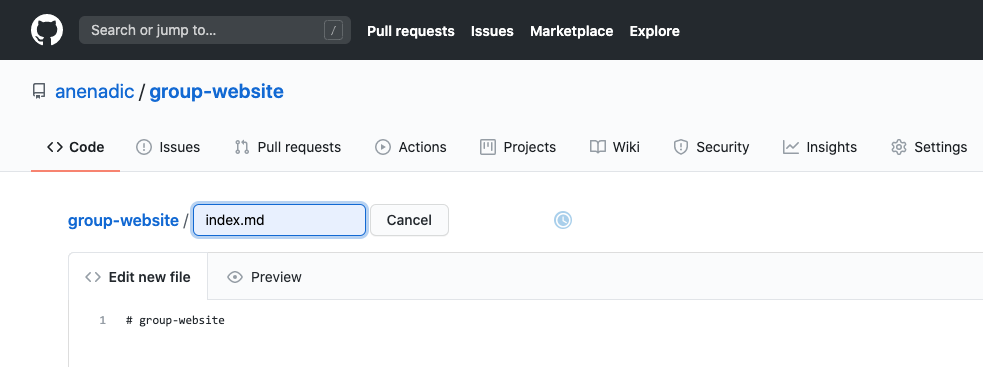
We are now ready to start adding more content to our website. Let’s do some exercises.
Exercise: Add New Content to the Website
Add a new section ‘Description’ to file
index.mdand add some description.
- From the GitHub interface, edit file
index.mdand add a new section calledDescriptionto it, with some text about the project.- View the changes on the website.
Solution
Edit
index.mdfile to look something like:# My Research Project ## Description This research project is all about teaching you how to create websites with GitHub pages.Go to your website. It should now look like:
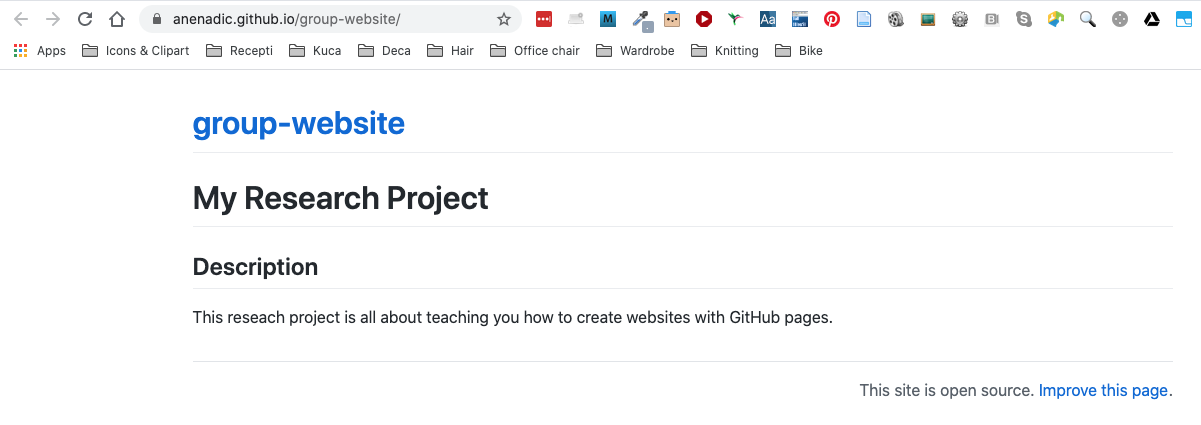
Both the pages built from README.md and index.md
have been served to us at the “root” of our site:
the page we see when we point our browser to
https://YOURUSERNAME.github.io/REPONAME/.
The actual name of this page is index.html
(navigate to https://YOURUSERNAME.github.io/REPONAME/index.html
to see this for yourself),
i.e. the file index.md is converted by Jekyll to a page called index.html.
As more Markdown files are added to your repository,
the same process will automatically occur for those files too.
For example, a file called contact.md will be converted to contact.html
and cake-recipes.md will become cake-recipes.html.
However, unlike the special index.html file,
which Web servers look for as the default “landing page” to display when
handling a request for a URL with a trailing forward slash,
we must request these pages by name when we want to view them on the Web.
Continuing with the above examples,
if we wanted to visit the cake-recipes.html page,
we would need to point our browser at
https://YOURUSERNAME.github.io/REPONAME/cake-recipes.html,
and https://YOURUSERNAME.github.io/REPONAME/contact.html
for the page built from contact.md.
However, when linking between pages of the same site (relative linking),
GitHub Pages allows us to refer to the name of the original Markdown file,
and handles the URL conversion for us.
This means that, to link to cake-recipes.html from index.html,
we can write a link such as
[Read our recipe for Triple Chocolate Raspberry Surprise Cake and more](cake-recipes.md) and Jekyll will convert this to the appropriate URL.
(It won’t write or bake the recipe for us, unfortunately.)
Relative links can point to files in other directories too:
recipes/chocolate-salted-caramel-pudding.md and ../local-dentists.md
are both valid link targets
(assuming the relevant files exist in your repository).
Exercise: Create Links Between Pages
Create a new file
about.mdand link to it fromindex.md.
- From the GitHub interface, create a new Markdown file called
about.mdand add some content to it.- Add a link to
about.mdfromindex.md.- View the changes on the website.
Solution
Create new file called
about.mdfrom the GitHub interface:about.mdfile to look something like:# About ## Project This reseach project is all about teaching you how to create websites with GitHub pages. ## Funders We gratefully acknowledge funding from the XYZ Founding Council, under grant number 'abc'. ## Cite us You can cite the project as: > *The Carpentries 2019 Annual Report. Zenodo. https://doi.org/10.5281/zenodo.3840372* ## Contact us - Email: [team@carpentries.org](mailto:team@carpentries.org) - Twitter: [@thecarpentries](https://twitter.com/thecarpentries)Note how we used various Markdown syntax: quoted text (
>), italic font (*) and external links (a combination of square[]and round brackets()containing the link text and mailto or regular Web URLs respectively).Edit
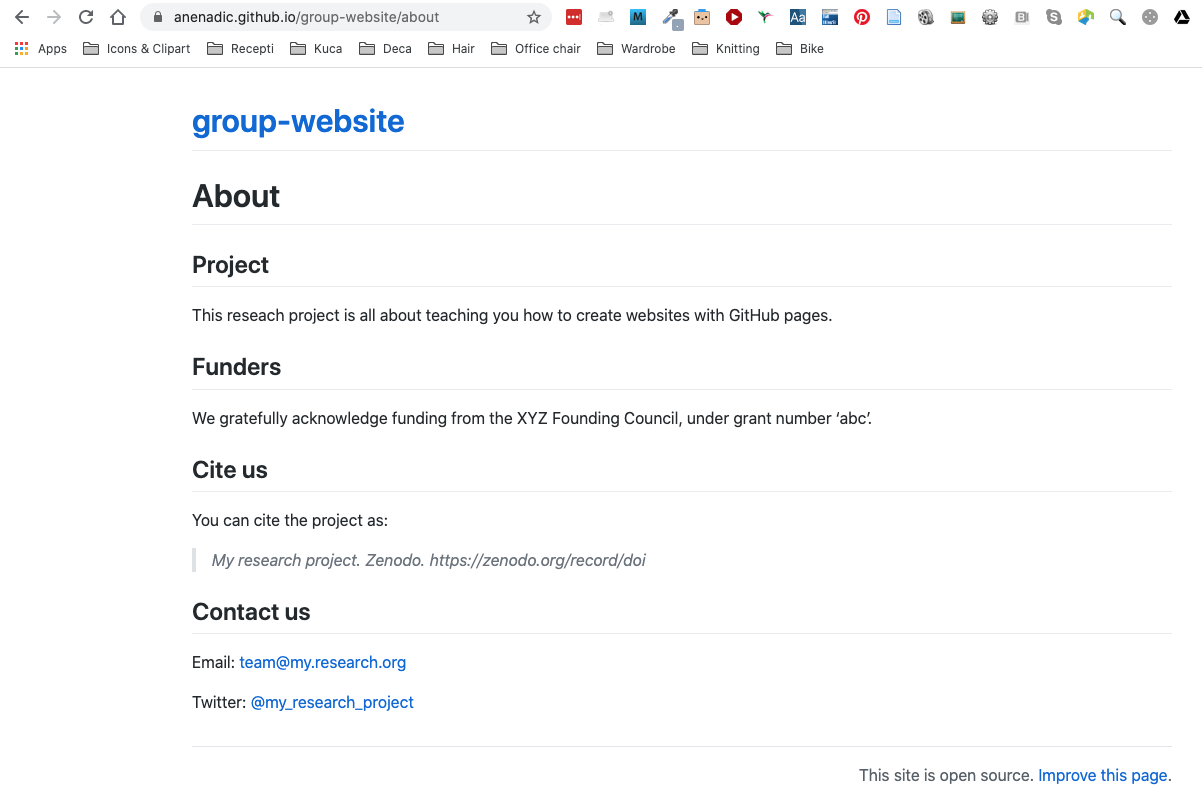
index.mdto add a link toabout.md.# My Research Project ## Description This research project is all about teaching you how to create websites with GitHub Pages. More details about the project are available from the [About page](about).Go to your website and click the link to ‘About’ page. It should look like:
Note that the URL has ‘/about’ appended to it - you can use this URL to access the ‘About’ page directly.

Key Points
GitHub Pages is a static site hosting service that takes files in various formats (Markdown, HTML, CSS, JavaScript, etc.) straight from a repository on GitHub, runs them through its website engine Jekyll, builds them into a website, and publishes them on the Web
By convention, if you create a branch called
gh-pagesin your repository, it will automatically be published as a website by GitHubYou can configure any branch of a repository to be used for website (it does not have to be
gh-pages)GitHub publishes websites on special URLs formatted as ‘https://GITHUB_USERNAME.github.io/REPOSITORY_NAME’
Starting with Jekyll
Overview
Teaching: 20 min
Exercises: 10 minQuestions
How can I use values stored in variables in my pages?
How can I configure global values/settings for my site?
Objectives
Substitute variable values into page content
Adjust the configuration of the site and individual pages
Jekyll is a powerful static site generator behind GitHub Pages. It creates static HTML
website content out of various files in your repository (Markdown files, CSS style sheets, page templates/layouts, etc.).
This ‘compiled’ content is then served as your website via the github.io Web domain (remember your website’s URL
from the previous episode?). Jekyll automatically re-generates all the HTML pages for your website each time you
make a change to your repository.
Jekyll makes managing your website easier because it depends on templates. Templates (or layouts in Jekyll notation) are blueprints that can be reused by multiple pages. For example, instead of repeating the same navigation markup on every page you create (such a header, a footer or a top navigation bar), you can create a Jekyll layout that gets used on all the pages. Otherwise, each time you update a navigation item - you’d have to make edits on every page. We will cover Jekyll layouts in a bit; for now let’s start learning Jekyll and its scripting language called Liquid.
Global Parameters
Jekyll’s main configuration options are specified in a _config.yml file, which is written in a language
called YAML and placed in your site’s root directory. Parameters configured in _config.yml
are global or site-wide - that means they are accessible in every page of your website.
YAML
YAML is a human-readable data-serialization language. It is commonly used for configuration files and in applications where text data is being stored or transmitted and it is programming language agnostic.
Let’s create some configuration parameters for our website.
- From the GitHub interface, create
_config.ymlfile in your site’s root directory. -
Add parameters
title,descriptionandemailto it as:title: "Building Websites in GitHub" description: "This research project develops training materials for reseachers wanting to learn to build project websites in GitHub with GitHub Pages." email: "team@carpentries.org" - Commit your changes.
Global configuration settings from
_config.yml are made available as site.PARAMETER_NAME variable in every page within the website. So, global parameter email we defined above would be accessed as site.email.
In order to access the parameter’s value within a page, you use Liquid’s notation to output content by surrounding a variable in curly braces as {{ variable }}.
Predefined Global Parameters
In addition to the global parameters you define, Jekyll also makes a number of useful predefined site-wide variables available to you within your website: e.g.
{{ site.time }}(the current time) or{{ site.pages }}(a list of all pages).
Let’s make use of global parameters in our pages.
-
Modify
index.mdfile to make use of our global parameters like this:# {{ site.title }} ## Description {{ site.description }} More details about the project are available from the [About page](about). Have any questions about what we do? [We'd love to hear from you!](mailto:{{ site.email }}) -
We can use the same parameter in different pages. Let’s reuse
{{ site.description }}and{{ site.email }}inabout.mdlike this:# About ## Project {{ site.description }} ## Funders We gratefully acknowledge funding from the XYZ Founding Council, under grant number 'abc'. ## Cite us You can cite the project as: > *The Carpentries 2019 Annual Report. Zenodo. https://doi.org/10.5281/zenodo.3840372* ## Contact us - Email: [{{ site.email }}](mailto:{{ site.email }}) - Twitter: [@thecarpentries](https://twitter.com/thecarpentries) - Go to your website to see the changes.
- Note that site parameters will not render nicely when viewing files in GitHub (they will be displayed as text
{{ site.PARAMETER_NAME }}rather than the parameter’s rendered value) but will in the website.
Exercise: Create a Global Twitter Parameter
In
about.mdwe have a Twitter URL under the ‘Contact us’ section. That’s one piece of information that could go into global parameters in_config.ymlas you may want to repeat it on a footer of every page. Make changes to your website to extract Twitter URL as a global parameter.Solution
Add parameter twitter to
_config.yml:title: "Building Websites in GitHub" description: "This research project develops training materials for reseachers wanting to learn to build project websites in GitHub with GitHub Pages." email: "team@carpentries.org" twitter: "https://twitter.com/thecarpentries"Make use of the twitter parameter in
about.md:# About ## Project {{ site.description }} ## Funders We gratefully acknowledge funding from the XYZ Founding Council, under grant number 'abc'. ## Cite us You can cite the project as: > *The Carpentries 2019 Annual Report. Zenodo. https://doi.org/10.5281/zenodo.3840372* ## Contact us - Email: [{{ site.email }}](mailto:{{ site.email }}) - Twitter: [{{ site.twitter }}]({{ site.twitter }})Note that you should not see any changes to your website really. However, you can now access your Twitter URL from any website page, should you need to.
Reuse and Reduce
Jekyll’s global parameters are a useful way to keep all your site-wide configuration in a single place (even if you only use them once). In combination with Jekyll layouts/templates (to be covered in the next episode) they are a great way of creating reusable markup snippets that can be repeated on multiple or even on every page of your website. Reuse helps you reduce the amount of code you have to write.
Local Parameters
In addition to global (site-wide) parameters available via the site global variable, Jekyll makes local (page-specific) information available to you via the page variable.
Some of these are pre-defined - like page.title, which gives you the title of the page that is currently active/being visited. Others you can define yourself. Check this list of predefined page parameters.
You can define local parameters using YAML notation within a Markdown page by including it in a page header and delimiting the header with triple-dashed lines ---. These headers are called front matter and are
used to set variables and metadata on individual pages in your Jekyll site.
Front matter
From Jekyll’s website:
Any file that contains a YAML front matter block will be processed by Jekyll as a special file. The front matter must be the first thing in the file and must take the form of valid YAML set between triple-dashed lines.
Here is an example:
---
layout: post
title: "My first blog post"
author: "Danger Mouse"
---
Between these triple-dashed lines, you can overwrite predefined variables (like page.layout or page.title) or create custom ones you need locally on the page (like page.author). These variables will then be available for you to access using Liquid’s tags {{ and }} further down in the file and also in any files that include this one.
Exercise: Practice with Local Variables
Let’s practice making and using local variables. Think of a local variable you may want to use only in your
about.mdorindex.mdpage. If you cannot think of any, create a local variable called ‘lesson-example’ with the value of ‘https://carpentries.github.io/lesson-example/’ and reference it in yourindex.md.What did you add to your
index.mdto create this variable? Where did you add the front matter in yourindex.md? How did you reference that variable?Solution
Create a YAML header at the very top of
index.mdand add thelesson-examplevariable in between the triple-dash delimiters. You can then reference the value within yourindex.mdpage as{{ page.lesson-example }}. Your file should now look like:--- lesson-example: "https://carpentries.github.io/lesson-example/" --- # {{ site.title }} ## Description {{ site.description }} More details about the project are available from the [About page](about). See some [examples of our work]({{ page.lesson-example }}). Have any questions about what we do? [We'd love to hear from you!](mailto:{{ site.email }})Note that this variable is not accessible from
about.mdpage and is local toindex.md.
Exercise: Practice with Troubleshooting
Sometimes typos happen and can make your website change in surprising ways. Let’s experiment with some possible issues that might come up and see what happens.
Try the changes listed below on your
index.mdfile and see what happens when the page renders. You will want to correct the previous mistake each time.
- Use a global or local variable that you didn’t define first.
- Leave the dash off the end of the YAML header.
- Don’t put a space between the YAML header and the rest of the page
- Put the YAML header in a different location in the page.
Solution
The place where you used the undefined variable is blank but otherwise no error. Example:
Hi! {{ site.greeting }}. What have you been up to?The header shows somewhat in the file and the variable that was defined goes to the index page intead of the link we set.
---
lesson-example: "https://carpentries.github.io/lesson-example/"

Examples of our work can be found at: {{ page.lesson-example }}
This doesn’t seem to affect our page but can often make more complex pages break.
---
lesson-example: "https://carpentries.github.io/lesson-example/"
---
Examples of our work can be found at: {{ page.lesson-example }}
This also makes the header somewhat show in the page and breaks the variable link we created.
Examples of our work can be found at: {{ page.lesson-example }}
---
lesson-example: "https://carpentries.github.io/lesson-example/"
---
Note: Be sure to fix any errors you intentionally introduced in your page before moving on.
Key Points
Variables can be defined globally in
_config.ymlor locally within YAML header (front matter) of a pageVariable values can be substituted into page content with Liquid notation:
{{ variable }}Global variables are accessible from any page of your website; local variables can only be accessed within the page in which they were defined (and any pages that include this page)
Re-using Blocks of Content
Overview
Teaching: 0 min
Exercises: 0 minQuestions
How can I reuse the same chunks of material in multiple pages?
Objectives
Create reusable blocks of content and insert them into pages
Learn how to identify and correct errors that lead to Jekyll build failures
In the previous episode, we discussed the benefits of using global and local variables to re-use values throughout our pages. However, repeated use of content in and across websites is usually not limited to individual values such as email addresses and social media handles.
Exercise: What Gets Re-used?
Look at the two pages linked below, and browse some other pages on the same site.
What content is being re-used between pages on these sites? Pair up and compare your partner’s notes with your own. Can you identify any common type(s) of content that is being re-used in these sites?
Solution
The Software Sustainability Institute website re-uses many structural elements, such as the page header (containing the “top menu,” the institute’s logo, links to social media, etc) and footer (containing copyright and licensing information, links to the privacy policy and accessibility statement, a form to subscribe to the institute’s newletter, etc). Elsewhere, blocks of text and images are re-used in the main body of multiple pages, e.g. blog and news posts all end with a description of how the reader can contact the SSI to discuss the content.
The DiverseKids site has the same kind of shared header and footer on each page: this is a common theme across most websites, helping to improve navigation and other aspects of the user experience and achieve consistent “branding” across the whole site. The books listed under each category include a title, a price, and cover image. The category links themselves are also shared across each page, probably generated from the existing categories of books in the collection, and updated automatically when a category is added or removed.
The most commonly reused content is structural: menus and branding information used to present a consistent and recognisable interface to the user regardless of which specific page of the site they’re visiting. We’ll look more at that in the next episode. But some content, such as contact statements and post/product listings, can be reused in the body of pages. The motivation for reusing content like this is that, if you need to update that content - changing the contact address, updating a price or picture associated with a listing, and so on - you need only change this information in one place for the update to be propagated across the whole site. This is related to the DRY (Don’t Repeat Yourself) principle of good practice in programming.
DRY (Don’t Repeat Yourself) Principle
DRY principle is one of the basic principles of software development aimed at reducing repetition of information.
As far as we know, the sites linked in the previous exercise aren’t built with Jekyll. But the principles behind reusing content apply regardless of the particular framework being used to build the site.
Adding and Reusing a Site Banner
Let’s look at an example of how we can create a block of common content and reuse it in multiple pages on our site. At the moment our pages are quite plain: why don’t we try adding a banner to the top of each page?
We’re going to add a pre-made banner image to our repository, and it is good practice to store all image files in a common folder.
- Click “Create new file” under the “Add file” dropdown on your repository homepage,
- In the “Name your file…” box, type
images/. The folder name should be automatically inserted in the path displayed next to this box for naming the file. - You can then leave the file blank and name it
.gitkeep. When you commit the changes, theimagesfolder will have been added to your repository. We will be uploading our banner image to this folder in a moment and unfortunately GitHub does not provide a way to create a new folder while uploading existing files, only while creating new ones. When making these blank files, which exist only to allow the existence of their parent repository, it is traditional to call them.gitkeep. Now download this banner image that we will add to our pages save it with the namesite_banner.pngand upload the file to your newly-createdimagesfolder on GitHub: you can do this by navigating into the folder and choosing “Upload files” from the “Add file” dropdown you used before.

Now that the banner image is available in our site repository,
add this Markdown immediately after the YAML front matter in index.md:


Adding this should result in this title banner appearing at the top of your page.
Image Elements
When adding the image above with Markdown, the filepath in
()tells the web browser the location of the image file to display on the page, and the text in[]defines alternative text (often abbreviated to alt text). This alternative text is important for two reasons:
- It defines the description given to anyone using a screen reader to access your site, who cannot view the image itself. If you do not define alt text for an image/figure, the content of your site becomes less accessible for these users.
- If the browser cannot display the image for some reason (e.g. the image is moved/renamed/cannot be served) the alt text is displayed instead.
It is good practice to always define alt text for your images, and you should aim to limit this alt text to a brief description of the information provided by the image, ideally providing no more or less detail than is displayed in the image itself.
When defining an image (
img) element in HTML (as we will do in the next section), the filepath, or source, of the image is provided as thesrcparameter, and the alt text as thealtparameter.
Exercise: Creating a Linked Banner
It is common for banner logos like the one above to link back to the homepage of the website they are displayed on. With Markdown, turn the image into a link to the landing page (
index.md) of your site.Solution
[](https://YOUR_USERNAME.github.io/YOUR_REPO_NAME/)
To make the banner to appear above every page on our site,
we could add the code above to each Markdown file in our repository.
But if we wanted to adjust it - display a different image,
adjust the link target, etc -
we would need to make the same adjustment on every page.
Instead, we can go some way to avoid this hassle by using
some magic that Jekyll provides: include tags.
To demonstrate this, save the HTML snippet used to display the image into
a new file in your repository, called _includes/banner.md.
Unlike when we wanted to upload a pre-existing file
to a new folder earlier,
we can create the new folder and the new file simultaneously:
- click “Create new file” under the “Add file” dropdown on your repository homepage,
- in the “Name your file…” box, type
_includes/. As before, the folder name should be automatically inserted next to the box. - You can then name the file
banner.mdand, when you commit the changes, the_includesfolder will have been added to your repository.
Now delete the HTML block you added to index.md,
and replace it with the following _includes tag:
{% include banner.md %}
Refresh the page and, barring any typos e.g. in the name of the file,
you should see the banner image on the page as before.
You can add the same include tag at the top of
all the other Markdown files for your site
to get the same banner displayed on every page.
The include tag can be used to insert the Markdown or HTML contained in
any file saved within _includes: provide the path to that file
relative to _includes/ and Jekyll will substitute the contents into the page
before rendering it as HTML.
Like the _config.yml file that contains the configuration for your Jekyll site,
the _includes folder has a name beginning with an underscore to show that it
has a special meaning to Jekyll.
We will see another example of this shortly.
Why Not Use Variables?
We must place our blocks of content for inclusion in separate files because Jekyll does not support substitution of variables within variables. If you’d like to investigate further, you might try creating a global variable in your site’s
_config.ymlwhich includes a call to another variable in its value, e.g.social: "Follow us on [Twitter]({{site.twitter}})", and using it in a page ({{site.social}}for the example above).
Exercise: Including Contact Information
The last line of
index.mdincludes the kind of information you might want to re-use in multiple places throughout your site.## Contact us - Email: [{{ site.email }}](mailto:{{ site.email }}) - Twitter: [{{ site.twitter }}]({{ site.twitter }})Copy the snippet and save it into an appropriately-named file, then use an
includestatement to re-insert it at the bottom of your site’sindex.md, and add it at the bottom of theabout.mdpages.Solution
Create a file called
contact.md(or similar) inside the_includesfolder:## Contact us - Email: [{{ site.email }}](mailto:{{ site.email }}) - Twitter: [{{ site.twitter }}]({{ site.twitter }})and add the line
{% include contact.md %}at the end of
index.mdandabout.md(replacing the equivalent section if it is still present).
Including Link References
You can use
includetags to help minimise the effort required to keep links up-to-date across your site. In the Authoring with Markdown section, we learned about writing reference-style links in Markdown, e.g.[link text][link-target]in the body of the file with a corresponding[link-target]: https://carpentries.orglink reference (usually all such references are kept at the bottom of the file). Usingincludetags, the link references for every page on your site can be stored in a file in the_includesfolder (we recommend the name_includes/links.md) and inserted into the end of each page. With this approach, any time you need to update one of these link references, e.g. if the URL changes to your host institute website, you only need to change the URL in_includes/links.mdto update the target of all the relevant links across your site.
When things go wrong
So far we have seen how to successfully use Jekyll to produce a website. There are however some situations where Jekyll may fail to do so either due to a typo or missing information.
Exercise: Troubleshooting Revisited I
This exercise will help you recognise how common mistakes look like when working with these elements of a Jekyll website.
Edit your
index.mdfile andincludethe (non existing) filemistake.md.Solution
{% include mistake.md %}If you navigate your GitHub repository you will be able to preview the change to
index.mdbut, contrary to what we saw before with invalid Markdown, Jekyll will refuse to build the website and produce an error message.We will see after this where to find the error message and identify what caused them.
If you were keeping an eye on the GitHub repository page until now, you may have noticed a yellow circle visible when the website is still being processed and a green check mark (✓) when successful. You may have also noticed that in the same location there is now a red cross next to the commit message (❌).
This indicates that something went wrong with our Jekyll build process.

You may also find an email from GitHub in your inbox with details about the error. But lets look at our repository again. If we click the red cross next to the commit message (❌) a little pop-up will appear with additional information.
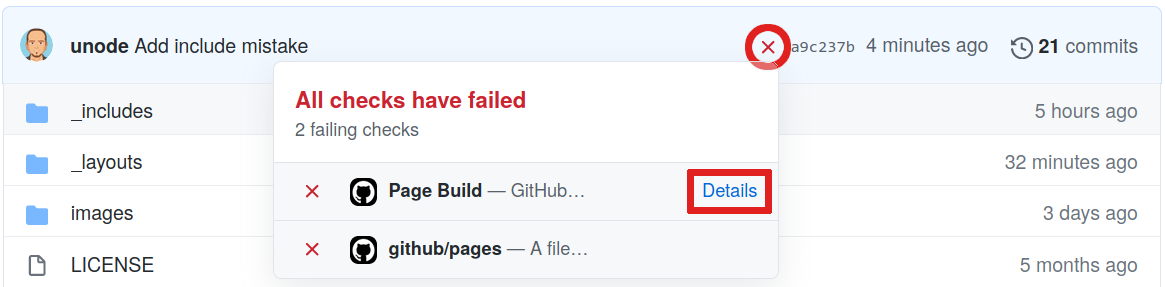
Visiting the page behind the Details link will give us the information we were missing.
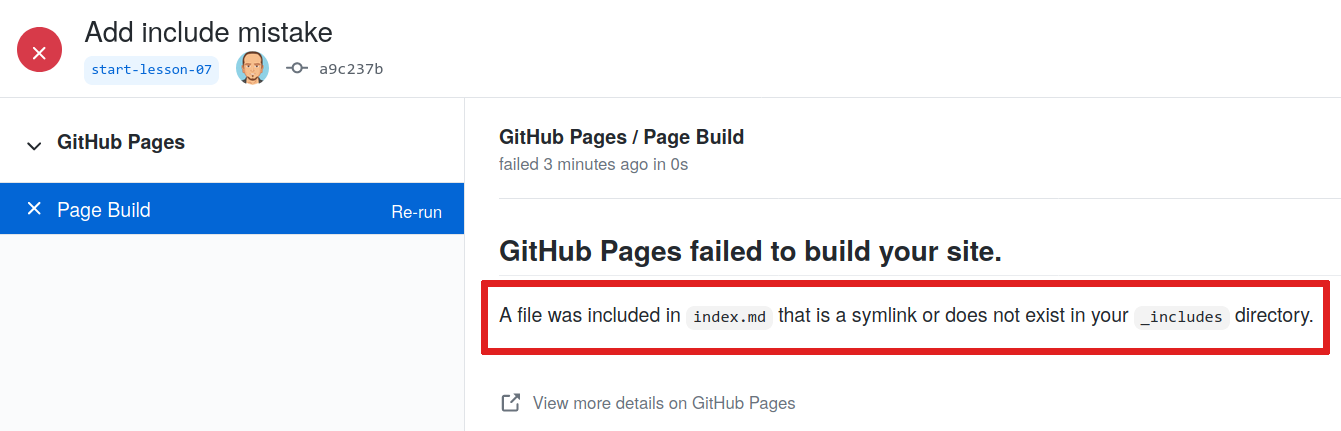
From this page we can see that what caused the failure was the {% include mistake.md %} that we added to index.md.
Since Jekyll cannot find mistake.md the process cannot continue.
Failure will not remove your website
Given the failure you may be wondering what happened to the website? If you visit the address you will find that the website is still be available.
GitHub will keep your previous version online until the error is fixed and a new build is completed successfully.
To fix this error we could create the file _includes/mistake.md
or modify the index.md to no longer include this file,
Lets go ahead and delete {% include mistake.md %} from index.md.
After a few seconds we should see a green checkmark again and our website will be updated.
Key Points
The content of files in the
_includes/directory can be inserted into a page with{ % include file_name % }Errors can happen but Jekyll will often tell us what’s wrong
Page Layouts
Overview
Teaching: 0 min
Exercises: 0 minQuestions
How can I design the layout for all pages on my site?
Where can I find pre-built themes for my site?
How can I create new layouts based on those I already have?
Objectives
Apply a template layout to a page
Find and implement pre-existing themes to determine the style of a site
Create new page templates that inherit from existing layouts
Elements that will appear on every page across our website,
like the banner image we included in our pages in the previous section,
form part of the structure of the page:
unlike the content specific to each page,
these structural elements do not change from page to page.
As such, although the include tags reduce the pain we endure when
adjusting that repeated content,
it is not good practice to include the same content over and over again.
This structure can instead be defined within the layout of the pages of the site.
Common elements found in a layout are logos, banners, navigation menus, footer content such as copyright and licensing information: material often found at the very top or very bottom of a webpage.
Defining a Layout
Jekyll layouts are defined as HTML files in a special _layouts folder.
We will want our banner image to appear on every page of our site so,
instead of using an include tag on each page individually,
we should add it to the layout used for each page.
Just like our site’s pages, layouts can include blocks defined in other files,
but the catch is that these must also be HTML.
That means we need to convert the banner Markdown to HTML.
Create a new file _includes/banner.html (copy the contents from _includes/banner.md),
and redefine the banner image as an <img> element in HTML.
We can also replicate the link behavior we added in a previous exercise by using an anchor <a>...</a> tag.
Before
[](https://YOUR_USERNAME.github.io/YOUR_REPO_NAME/)
After
<a href="https://YOUR_USERNAME.github.io/YOUR_REPO_NAME/"><img src="./images/site_banner.png" alt="Group Website banner"></a>
Now it’s time to define the new page layout,
which we will save in a file _layouts/page.html.
Having defined the banner in a separate file,
we will start with a layout file that only includes this file:
{% include banner.html %}
You have just defined the first layout for pages on your site. Congratulations!
To apply this layout to your site’s landing page,
add layout: page to the YAML front matter of index.md.
When you reload your site’s homepage you will see
that there is good news and bad news:
The good news: the banner image is there again;
the bad: all the other page content has disappeared!

The page content is missing because we haven’t yet told Jekyll where to put it.
To do that we need to add the special content variable into the layout file:
{% include banner.html %}

{{ content }}
We can use the content variable to tell variable where it should place
all the content defined in the Markdown of the page within this layout.
If we make the change above to _layouts/page.html and reload our site’s homepage,
we now see the page content has returned but we have two more problems:
the styling of our pages has changed (for the worse) and
the banner image appears twice!
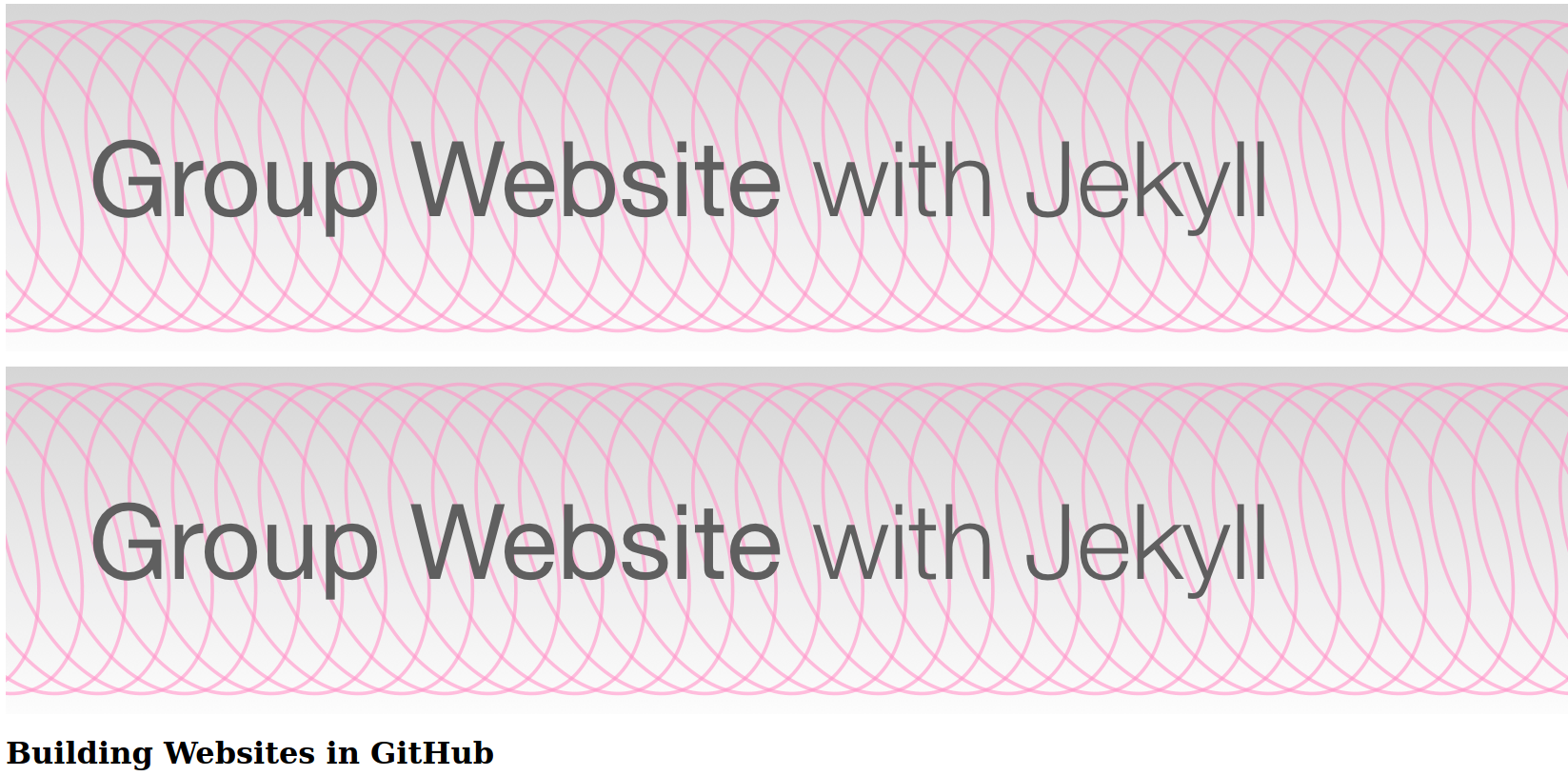
The duplication is happening because the
{% include banner.md %}
tag is still present in index.md.
Exercise: Cleaning Up
Remove the
{% include %}tag for the banner from all the pages of your site, and set every page to use thepagelayout.
Site Styling
That deals with the duplicated banner, but the change in styling is more difficult. Before we defined a layout for our pages, Jekyll used a default theme to style the site. That default has been overwritten now that we applied a layout file to our site and that means, if we want to use our own customised layouts, we will need to start telling the browser how we would like our pages to be styled. There is still more to learn about page layouts, so we will come back to this issue of styling at the end of the section.
Exercise: Expanding the Layout
We will probably want to include the contact line we added in the previous section in every standard page on our site. In a file
_include/contact.html, convert the contents ofcontact.mdto HTML. Thenincludeit in thepage.htmllayout file. Place it below the page content so that it appears at the end of each page that uses this layout. Check that this works by reloading any of the pages that uses thepagelayout.Solution
contact.htmlshould contain something like the following:<h2>Contact us</h2> <ul> <li>Email: <a href="mailto:team@carpentries.org">team@carpentries.org</a></li> <li>Twitter: <a href="https://twitter.com/thecarpentries">@thecarpentries</a></li> </ul>and your layout file,
_layouts/page.html, should look like this:{% include banner.html %} {{ content }} {% include contact.html %}If you check
index.mdandabout.mdyou will find the contacts section duplicated. Delete{% include contact.md %}from both files to remove the duplicated content.
Valid HTML, Page Metadata and a Default Layout
You might recall from
the introduction
to this tutorial, that a valid HTML page consists of more than
only the content we want to display.
We haven’t written these extra elements (<html>, <head>, <meta>, etc)
in our layout file: but there are some advantages to defining these yourself:
these invisible elements of a web page describe metadata about the page,
which can be used by Internet search engines to better understand what
the page is about and who it is for.
This information is factored in when the search engine indexes the page,
and subsequently makes it more findable for your target audience.
(This is one consideration in the much larger field of
Search Engine Optimisation.)
For example, to make the browser automatically adjust the way your pages are
shown on different displays/devices,
you could include the element
<meta name="viewport" content="width=device-width, initial-scale=1.0">
inside the <head> of your pages.
(Read this W3Schools page to learn more.)
It is common practice to define the structural elements of your site’s pages
inside a _layouts/default.html file.
This file defines the bare minimum layout your pages should have.
Exercise: Laying the Groundwork
Create another layout file,
default.html, with the following content:<!doctype html> <html lang="en"> <head> <meta charset="utf-8"> <title>{{ page.title }}</title> </head> <body> {% include banner.html %} <h1>{{ page.title }}</h1> <section> {{ content }} </section> <footer> An example website made with Jekyll. </footer> </body> </html>
- Apply this layout to
index.mdand reload the page to check that it works as expected. You should see a footer at the bottom of the page.- Note that we are using
includeto add the banner image to this default layout. How can you do the same with the footer, instead of defining it directly within the layout file?Solution
After creating
_layouts/default.htmlwith the content above editindex.mdand changelayout: pagetolayout: default.To separate the footer from the layout, copy the
<footer></footer>tags and the text between them into a file_includes/footer.html:<footer> An example website made with Jekyll. </footer>And to
includeit back into the layout, replace thatfooterelement with{% include footer.html %}If you refresh the page you may find an unexpected
{{ site.title }}close to the banner. Alternatively you may find that the page title is not what we defined in_config.ymlbut is instead empty.Whichever the case, this happens because we are referencing
{{ page.title }}indefault.htmlbut we didn’t define thetitlevariable in the front matter ofindex.md.We can go ahead and correct this after which our
index.mdwill look like:--- lesson-example: "https://carpentries.github.io/lesson-example/" layout: default title: "Welcome to my group website" ---
Layout Inheritance
To prevent the duplication of all this “invisible” HTML across all the layouts we define for a site, Jekyll allows for layouts to be based on other layouts, which can be based on other layouts, and so on. This is referred to as layout inheritance, and is refreshingly easy to use.
To set our page layout to inherit from default.html,
we should add YAML front matter to the layout file,
specifying the layout to be default.
---
layout: default
---
{% include banner.html %}

{{ content }}

{% include contact.html %}
If we visit the site now we will (once again!!) have a duplicated banner
as it is included both in the page and default layouts.
To fix it we should remove {% include banner.html %} from page.html:
---
layout: default
---

{{ content }}

{% include contact.html %}
After this change, if you reload the about page, that still uses the page layout,
you should now see that it has all of the structure provided in default.html
as well as the contact information included in page.html.
The purpose of this approach, defining the core structure that will be common to every page across your site in a default layout, then basing more specific layouts on this foundation, is to keep duplication to a minimum within our repository. Whenever you want to update something about the styling or structure of your site, you should only need to make that change in a single file and let it propagate to all the relevant pages.
You Can’t Include Link References in the Layout
In the previous section, we recommended that you
includea file of references for the links on your site. Unfortunately, you cannot add this{% include links.md %}tag to the default layout of your site to prevent you from needing to add it at the bottom of every page. This is a result of the order of Jekyll’s rendering process, which constructs the HTML of the page content in isolation before constructing the HTML of the relevant layout(s) and nesting it inside. If the link references areincluded in the layout rather than the content, those references will not be available while the content is converted to HTML and the links will not render correctly. It is annoying to have to remember to add{% include links.md %}to the end of every page’s Markdown, but less annoying than having to manually edit the same link reference in multiple locations throughout the site.
Exercise: Troubleshooting Revisited II
As we saw before with
_includesJekyll can refuse to build a website when files are missing or the configuration is not correct. This is specially true when working with_layoutsas it is easy to introduce typos or forget to update your page front matter after renaming a file.Try making the changes listed below on your
index.mdfile and see what happens when the page renders. You will want to correct the previous mistake each time.
- Change the value of the
layoutfield inindex.mdtomistake(a layout that has not been defined).- Include
banner.htmlincontact.htmland includecontact.htmlinbanner.html.Solution
The page will be successfully built but only the content in the
index.mdfile will be displayed. For instance, the index page will be missing the banner.
If we were using Jekyll locally a warning would be logged, however warnings are not visible in GitHub.File
banner.htmlincludescontact.htmlwhich in turn includesbanner.htmlThis situation creates what is called a circular reference or circular include and happens rather often when using complex layouts and includes together with inheritance. It’s also common when moving entire sections between different layouts or includes.
In this case, the error displayed by GitHub is not that helpful and simply tells us that something went wrong with the errorPage build failed.
If we were using Jekyll locally we would seestack level too deep. This error tells us that Jekyll tried to resolve which file includes which but hit a system limit.Note: Be sure to fix any errors you intentionally introduced in your page before moving on.
Using a Pre-Existing Theme
We have now seen how to create pages, re-use content across them, and define layouts, and you may be coming to understand that it requires a lot of work to build a website from the ground up. This is not a task we recommend you undertake lightly!
Instead, an alternative is to base your site on one of the many pre-existing themes for Jekyll. Many of these themes are free and open source and, as long as you follow the terms of the license (e.g. remember to give due credit to the original - check the full terms for details), can be adapted/customised to suit your purposes. You can browse a list of Jekyll themes on jekyllthemes.io.
These themes can be elaborate and quite complicated. We hope that the knowledge of Jekyll that you have gained from following this lesson will help you understand how they work and determine what you need to change and where, to make the customisations you need for your site.
Key Points
Files in the
_layouts/directory can be used as page templatesThe structure of a page is determined by the
layoutfield in the page front matterYou can find many pre-existing themes for sites on the Internet
You can avoid duplicated effort by basing new layouts on previous ones
Working with Filters
Overview
Teaching: 0 min
Exercises: 0 minQuestions
How can I control the format of variable values such as dates I insert them into a page?
Objectives
Use simple filters to control the format and content of substituted values.
Writing Blog Posts
So far we have been building our site one page at a time, but these individual pages are quite self-contained and their content is likely to be fairly constant: the information on your home page, your contact details etc are unlikely to change very often and, after the site has been built, new pages like this probably won’t be created often. This is good because, if you would like to construct a navigational menu to browse through these pages, it would be annoying to have to expand/reorganise this all the time when a new page is added to the site. (We will actually build a navigational menu like this in the final section.)
However, it is common for sites to also host a series of shorter pages as blog posts (usually with a page listing the posts - again, there will be more on this in the final section), which are typically structured differently or contain different information to the standard pages (such as publication date, author name, etc).
To start adding blog posts to our site the first thing we need to do is create a new layout for these posts, inheriting from the default layout we created earlier.
---
layout: default
---

<strong>Author:</strong> {{ page.author }}
Published on {{ page.date }}

{{ content }}
Save this layout to _layouts/post.html.
Now we can create our first blog post, 1827-11-22-surgeon.md,
remembering to add the author and date fields
to the YAML front matter:
---
layout: post
title: I am a Surgeon!
author: Dr James Barry
date: 1827-11-22
---

Today was a good day. I was promoted to Surgeon to the Forces!
FIXME: add screenshot of rendered blog post.
This is a good start! Let’s make a second post before we try to further improve our post layout.
Exercise: Creating Another Post
Write another blog post, in a file called
1851-05-16-DIG.md, so that the rendered page looks like this:FIXME: add screenshot of rendered blog post
Solution
---
layout: post
title: Promoted Again
author: Dr James Barry
date: 1851-05-16
---

Good news: I have been promoted to Deputy Inspector-General of Hospitals.
Introducing Filters
The YYYY-MM-DD format for dates is easy to remember and great for computers but could be formatted a little more nicely for a human reader.
To ensure consistency throughout all our posts in the future,
we can define the format in which the date should be displayed in the post.html
layout file.
The YYYY-MM-DD date in the post front matter will be converted to
a more human format (e.g. 4th September 2019) at the top of each post,
using a Filter:
Published on {{ page.date | date_to_long_string: "ordinal" }}
FIXME: add screenshot of rendered publication date
Filters like date_to_long_string can be used when
working with variable values on a page.
When a filter is applied to a variable, it processes that value in some way:
in the example above, it converts the format of the date string.
We will explore the "ordinal" part in the exercise below.
Exercise: Date Formats
"ordinal"is being passed as an argment to thedate_to_long_stringfilter. To see how this argument is changing the behaviour of the filter, try removing it, i.e.{{ page.date | date_to_long_string }}. What happens? Which output do you prefer?Solution
Without the
ordinalargument,date_to_long_stringproduces the output04 September 2019. Whether you prefer this format is entirely subjective, and we encourage you to use which ever you prefer in your post layout.
These filters are based on Liquid, the scripting language underlying Jekyll. We will see another example of a filter in use in the next, final section, after learning a bit about arrays and collections in Jekyll.
Documentation and a Word of Warning
A complete list of available filters is provided in the official Jekyll documentation and you might also find it helpful to refer to the official Liquid documentation while you continue to explore.
Beware however, that GitHub Pages does not use the most up-to-date version of Jekyll! This means that some features you will read about in the Jekyll documentation will not be available for you to use on your site. Use this page to check the versions of Jekyll and other dependencies used by GitHub Pages.
Key Points
You can use Liquid filters to adapt the values of variables when adding them into your pages.
Datetime filters such as
date_to_stringcan provide more readable timestamps on your pages and posts.GitHub Pages doesn’t use the most recent version of Jekyll, so you should avoid the features added most recently.
Loops and Collections
Overview
Teaching: 0 min
Exercises: 0 minQuestions
How do I work with variables containing multiple values in Jekyll?
How do I add a list of blog posts to my site?
How do I filter a list of values?
Objectives
Define list and dictionary variables and extract values from those variables.
Configure a collection of pages within a site.
Create and automatically populate a list of pages in that collection.
Now we have learned how to substitute and format values stored in variables into pages on our site, how to include and re-use entire blocks of content, and how to specify the layout of our different pages. One thing we are still missing is how to automatically generate lists of pages and other values: for a blog site it is usually desirable to include a list of the most recent posts to the blog, and an archive of all historic posts; for a group website, we may wish to do something similar with research projects or profile pages for individual team members.
Using what we already know about Markdown, we could write these lists by ourselves. But this would be time-consuming and inefficient: we would have to manually adjust these listings every time we write a new post/start a new project/welcome a new team member to the group. Instead, we will learn about two more features of Jekyll, for loops and collections, which can be used to populate and update lists within pages automatically.
List Parameters and For Loops
In addition to the single-value variable types we are already familiar with, YAML lets us define lists and dictionaries too.
For example, we may want to list the names of all the team members for a project,
together with their roles and start dates, inside _config.yml
and make use of this information throughout the website.
To do so in YAML notation would look something like:
team_members: [
    {name: "Sarah Becker", role: "project lead", start_date: "2016-02-01"},
    {name: "Jane Smith", role: "maintainer", start_date: "2018-03-15"},
    {name: "Albert Hamilton", role: "editor", start_date: "2017-12-01"},
]
This defines ‘team_members’ as a list of 3 elements; each element is a dictionary with key-value pairs for name, role and date.
Indentation in YAML
Note that indentation level in YAML is important - it can be a cause of some not-so-obvious mistakes. Use online YAML code validators, such as YAML Lint, to make sure your YAML is correctly formatted.
Now that the site.team_members variable has been defined,
we can insert it into any page on our site exactly as we have done before.
However, with list variables such as this, it is often preferable to iterate
through the values so that we can handle and display each one individually.
To do so we need a for loop,
inside which we can define what we want to do to to each of the list’s values.
In Liquid syntax, loops are created by surrounding the loop body in for/endfor tags as:
{% for thing in list %}
[ This is the loop body. Do something with the "thing" variable here. ]
{% endfor %}
Let’s use a loop to access the information about the team and
display it in about.md.
-
Modify
_config.ymlfile and add theteam_membersparameter as defined above. The file should now look like:title: "Building Websites in GitHub" description: "This research project develops training materials for reseachers wanting to learn to build project websites in GitHub with GitHub Pages." email: "team@my.research.org" twitter: "https://twitter.com/my_research_project" team_members: [ {name: "Sarah Becker", role: "project lead", start_date: "2016-02-01"}, {name: "Jane Smith", role: "maintainer", start_date: "2018-03-15"}, {name: "Albert Hamilton", role: "editor", start_date: "2017-12-01"} ] -
In file
about.md, we add a new section for the team and iterate over the values defined in parametersite.team_membersin a loop to display a table of the team members’ names and roles. The file now should look like:--- layout: page --- # About ## Project {{ site.description }} ## Funders We gratefully acknowledge funding from the XYZ Founding Council, under grant number 'abc'. ## Team The following people are members of our research team: <table> <tr><th>Name</th><th>Role</th></tr> {% for team_member in site.team_members %} <tr><td>{{ team_member.name }}</td><td>{{ team_member.role }}</td></tr> {% endfor %} </table> ## Cite us You can cite the project as: > *The Carpentries 2019 Annual Report. Zenodo. https://doi.org/10.5281/zenodo.3840372*
FIXME: add screenshot of rendered team member listing
Filtering a List
What if we want to pull out the information for a specific team member,
e.g. the Lead of a particular project?
To achieve this,
we can use another filter like the ones we saw in the previous episode:
the where filter creates a filtered list containing only those items
that fulfil the criteria provided.
For example, to filter only the project leads from the team_members list,
we would write the filter like this:
{{ site.team_members | where:"role", "project lead" }}
where returns a list,
but we expect there will be only one lead defined for each project,
and in such cases the best way to access this single value from the
filtered list is with another filter, first.
This filter returns the first entry in whichever list it is called on:
{{ site.team_members | where:"role", "project lead" | first }}
Assigning Variables Within a Page
We are almost there! But how do we access only the value for name within
the list entry returned by our combination of the where and first filters?
We cannot do so directly from the filtered list,
but Liquid provides a way for us to create a new variable
from the value returned by those filters.
For this, we use the assign tag, e.g.
{% assign lead = site.team_members | where:"role", "project lead" | first %}
{{ lead.name }}
Use this assign tag whenever you need to create variables for use “on the fly”
as you work with lists in your site.
We will see another examples of this when we investigate collections in the
next section.
-
In file
index.mdadd the team lead’s name so that it looks like:# {{ site.title }} ## Description {{ site.description }} {% assign lead = site.team_members | where:"role", "project lead" | first %} The project is led by {{ lead.name }}. [See our full team](about#team) Have any questions about what we do? [We'd love to hear from you!](mailto:{{ site.email }})
Now, if you need to add, remove or modify a team member,
you only need to update the list in _config.yml without modifying your pages.
Exercise: Personnel Changes
Your project team has changed. The team lead has left and in her place is a new person: ‘Tom Cat’, who started on ‘2020-10-01’. In addition, the team was expanded and a new developer called ‘Alice Dauncey’ joined on ‘2020-09-15’. Update your website to reflect these team changes.
Solution
Luckily, we keep all our global settings in
_config.ymlso all we have to do is update the values there. This saved us some work as for the team lead we would otherwise have to modify bothindex.mdandabout.md.For the new developer joining the team, we also only need to her information to
team_membersin_config.ymland ourfor loopfromabout.mdwill simply pick up the changes automatically. Magic! Our_config.ymlfile should now look like:title: "Building Websites in GitHub" description: "This research project develops training materials for reseachers wanting to learn to build project websites in GitHub with GitHub Pages." email: team@my.research.org twitter: "https://twitter.com/my_research_project" team_members: [ {name: "Tom Cat", role: "project lead", start_date: "2020-10-01"}, {name: "Jane Smith", role: "maintainer", start_date: "2018-03-15"}, {name: "Albert Hamilton", role: "editor", start_date: "2017-12-01"}, {name: "Alice Dauncey", role: "developer", start_date: "2020-09-15"} ]Check the changes in your website.
Introducing Collections
To finish things off, we will combine what we have learned here about lists and loops, with page layouts, filters, and the global configuration of our site, to create a blog feed that automatically updates whenever we create a new post.
In the Working with Filters episode we created a few blog posts, and would now like to display a list of these posts on a new page of the site. For this to work, we must tell Jekyll that the source files for these posts are related to each other i.e. that they all belong within a category, blog posts, that the other pages we have made so far do not. The mechanism Jekyll provides to do this is called a collection: a defined set of files that should be accessible as a set. Once we have defined this collection of blog posts, it will be accessible to us as a list variable, which we can then loop through and present in a variety of different ways on our site.
Configuring a Collection
Defining a collection requires us to do two things.
First, we must tell Jekyll about the collection by adding a new block
to the global configuration of the site.
In _config.yml, we add the following lines:
collections:
    posts:
        output: true
The posts: line says that our site includes this collection of files,
and output: true tells Jekyll to create a rendered HTML page from the content
of each of these files.
Now that we have configured our site to build this collection,
we need to populate it.
Jekyll will look for a folder in our site repository that shares its name with
the collection we defined, but with a preceding underscore in the folder name,
and build the collection from its contents.
In this case, we need to move all our blog post files into a _posts folder.
Once we have done that, we can check that the collection has been created correctly by trying to use it in a page.
Why
output: true?When creating our
postscollection in_config.ymlabove, we configured it with the parameteroutput: true, to ensure the pages of the collection were rendered to HTML by Jekyll.The other use of collections is as a collection of “data” files, defining objects that can be used as a list of variables throughout the site. For example, to avoid swelling the
_config.ymlfile every time our team welcomes a new member, we could have created an individual file for each of the members of our team, defined a collection, and looped through those members that way. To use the collection of files that way, we would keep the default value ofoutput,false.
Looping Over a Collection
At the end of your index.md,
add a new for loop to iterate over the titles and dates of the posts collection:
## Blog Posts

{% for post in site.posts %}
- {{ post.date | date_to_string }}: [{{ post.title }}]({{ post.url }})
{% endfor %}
FIXME: add screenshot of blog post list
There is a lot happening in those few lines above! Let’s break it down into smaller chunks and explore them one-by-one:
{% for post in site.posts %}initialises a loop through the collection. The collection itself is made available to us as asitevariable, with the name we gave it in_config.yml.-will create a bullet point for each post.{{ post.date | date_to_string }}accesses thedatedefined in the post’s YAML header and displays it in the list as a string.[{{ post.title }}]({{ post.url }})creates a link with the post’s title (again extracted from the YAML header of the post file) as the link text, and the url of the rendered post page as the link target.{% endfor %}ends the for loop after every post in the collection (i.e. every file in the_postsfolder) has been iterated over.
Clicking on one of these links takes us to the rendered version of the blog post page.
What’s even better is that
Jekyll has taken care of ordering the posts according to their publication date:
this is a special handling of the date parameter -
if it is present in the YAML header of pages in a collection it will automatically
be used to define the order in which the collection is delivered in the site.
If you would like to order a collection by a different field in the YAML header,
you can pass the collection through the sort filter
when initialising the for loop:
{% for post in site.posts | sort: "author" %}
Other filters also exist for working with lists of values,
such as group_by,
which can be used to group the values by a particular field,
and sample,
which returns a random sample of the values in the list.
Exercise: Adding the Post Author
Extend the example above to also state the name of the author next to each post in the list.
Solution
{% for post in site.posts %}
- {{ post.date | date_to_string }}: [{{ post.title }}]({{ post.url }}) by {{ post.author }}
{% endfor %}
Exercise: Reusable Post List
A list of blog posts is exactly the kind of component we are likely to want to use in multiple places throughout the site. Move the code to create the listing to a new file in the
_includesfolder, modify it to work as an included block, andincludeit again the end ofindex.md.Solution
Create a new file,
_includes/post_list.html, with the following content:<h2>Blog Posts</h2> <ul> {% for post in site.posts %} <li>{{ post.date | date_to_string }}: <a href="{{ post.url }}">{{ post.title }}</a></li> {% endfor %} </ul>and add an
includestatement at the end ofindex.md:{% include post_list.html %}
Exercise: Extend the Collection
Create another blog post and add it to the
postscollection. Check that your new post appears in the list.Solution
Write another post Markdown file and save it into the
_postsfolder, making sure you remember to add (at least) thedateandtitlefields in the YAML header.A link to the rendered version of that file should automatically appear in the blog post list of your site’s landing page (
index.html).
Comments on a static blog
When setting up a blog on a website, it is common to want to include a comment feed as a way for readers to respond to the content of a post, direct questions to the author, etc. A comments section can be included in a static blog using one of the below approaches.
- Disqus is the first approach. The Disqus website offers instructions on how to enable comments for Jekyll platform (used for GitHub pages). Here is a demo of Disqus with Jekyll. Although if you are privacy inclined, browser extensions such as Privacy Badger block the Disqus widget so you might look for alternatives.
- Staticman is the second approach. The setup is more complex than some of the other options and, in our experience, it is easy to get the configuration wrong. Here is a demo of comments with Staticman.
- Just Comments is the third approach. Here is a demo of comments with Just Comments.
- fastpages is the most recent addition to enable comments via GitHub comments (uses Utterances). fastpages comes with lots of options and is used by several researchers. Here is a demo of comments with fastpages.
- Welcomments (currently in beta testing) provides a webform for comments, and a bot that commits these to your website’s source GitHub repository so that they are included and displayed when the page is rebuilt. From the comments section implementation standpoint, Disqus looks most simple followed by Just Comments and Staticman. Fastpages is much more than enabling a comments section. It is a blog template that uses Jekyll as a base, improves on Jekyll experience and offers additional features. For researchers this may be the option to go.
Key Points
Iterate over multiple values in a list with a for loop.
Collections are defined in a site’s global configuration and populated in a corresponding folder.
Collections are presented by Jekyll as a list of page objects.
Wrap-up
Overview
Teaching: 0 min
Exercises: 0 minQuestions
How do all pieces of a Jekyll website fit into a directory structure?
What other resources are available for learning more on Jekyll?
Objectives
Summarise all the different technologies that are coming together to create GitHub Pages websites.
Look at the anatomy of a Jekyll website repository.
Identify other resources and further reading about Jekyll.
If you are a learner or an instructor that has some time left in their workshop - at this point we strongly recommend visiting the Jekyll Themes episode in Extras section of the lesson. It builds on the knowledge we gained so far and expands on how to build more complex and professional-looking websites by reusing existing website themes. Here, we are going to recap what we have learned so far and look at the anatomy of a GitHub Pages website and its common building blocks, which will also help you better understand Jekyll themes once you get to learning about them.
Summary
Throughout this lesson, we learned how to create formatted webpage content with Markdown, configure a GitHub repository to use the Jekyll static site generator, and how to use Jekyll to build our Markdown pages and various other files (HTML snippets, CSS, images, etc.) into a set of HTML documents that are then served via the GitHub Pages framework.
HTML is the basic building block of webpages served on the Internet. It describes the structural elements of the page and their raw content and is often aided by CSS - an ordered set of styling instructions telling the browser how the content described in the HTML document should be organised and formatted. HTML is very verbose and difficult to write by hand - beyond their initial design HTML pages are meant to be processed by machines. For that reason, Markdown was introduced - a lightweight Markup language and a convention for adding style information to textual content while retaining the human-readable form. It is not as rich in syntax as HTML, but comparably more usable by a wider audience.
Jekyll is a powerful static site generator behind GitHub Pages that supports a high degree of reuse and separation of content and presentation. It can be configured via the
_config.ymlYAML file that stores site-wide variables accessible from anywhere within our site. It also allows us to define and reuse page-wide variables, by defining them as the front matter at the beginning of our Markdown pages. Used in conjunction with Liquid, its scripting language, Jekyll allows us to include content from reusable markup snippets that can be repeated on multiple pages and to embed code snippets and filters into our pages to create some complex content assembly pipelines. That way, adding a new blog post to your website may only involve creating a file in the_postsfolder of your website, setting it to use the ‘post’ template and focusing on its content - and it will magically appear at the top of your Blog timeline without any extra effort on your part.
As a last thing, let’s put it all together by having a look at a directory structure of a Jekyll website, where different pieces are located and see how they relate to visual components on the rendered website pages.
Jekyll Website Directory Structure
As an example, we will have a look the Jekyll configuration used to create this lesson (shown in the image below). It uses The Carpentries Jekyll theme, which contains page layouts for various Carpentry websites - lesson materials, workshop websites, etc. We have created a new repository for this lesson by copying the Carpentries theme repository and customised it by adding our episodes and other content.
Note that if you look at other Jekyll websites, they will have slightly different directory structures as
they may use different themes. However, there are some common elements, such as index.md (the home page),
_config.yml (website’s global configuration),
and folders starting with _ which have special meaning to Jekyll by convention, such as:
_includes- containing reusable page snippets,_layouts- for storing theme’s page templates,_sassorassets(without the leading_) where Jekyll looks for ‘assets’ such as CSS and JavaScript files,_data- for storing well-formatted site data (in either the .yml, .yaml, .json, .csv or .tsv formats) that Jekyll autoloads and makes accessible accessible via thesite.dataglobal variable,_site- containing the static version of the website ready to be served to users once Jekyll compiles it.
Other ‘special’ folders, particular to this example only, are _episodes and _extras - they are collections defined by the theme
designer and have a special role in this website/theme for storing lesson and extra episodes.
Unless these collections are configured as described in the previous episode,
they will not be automatically processed by Jekyll despite starting with the _. The theme designer has made sure they are embedded in the website as intended,
by defining them in _config.yml and referring to them in Liquid code snippets
throughout the site.
In the website example we have been building throughout this lesson,
we have seen a similar folder _posts where we stored content of blog posts.
Other commonly seen folders in Jekyll websites are fig, sometimes also named images or figures, for storing website images and figures. There is no firm naming convention in this case - Jekyll will not process
these folders automatically and the website designer will have to make sure to access/link to the content
of these folders appropriately.
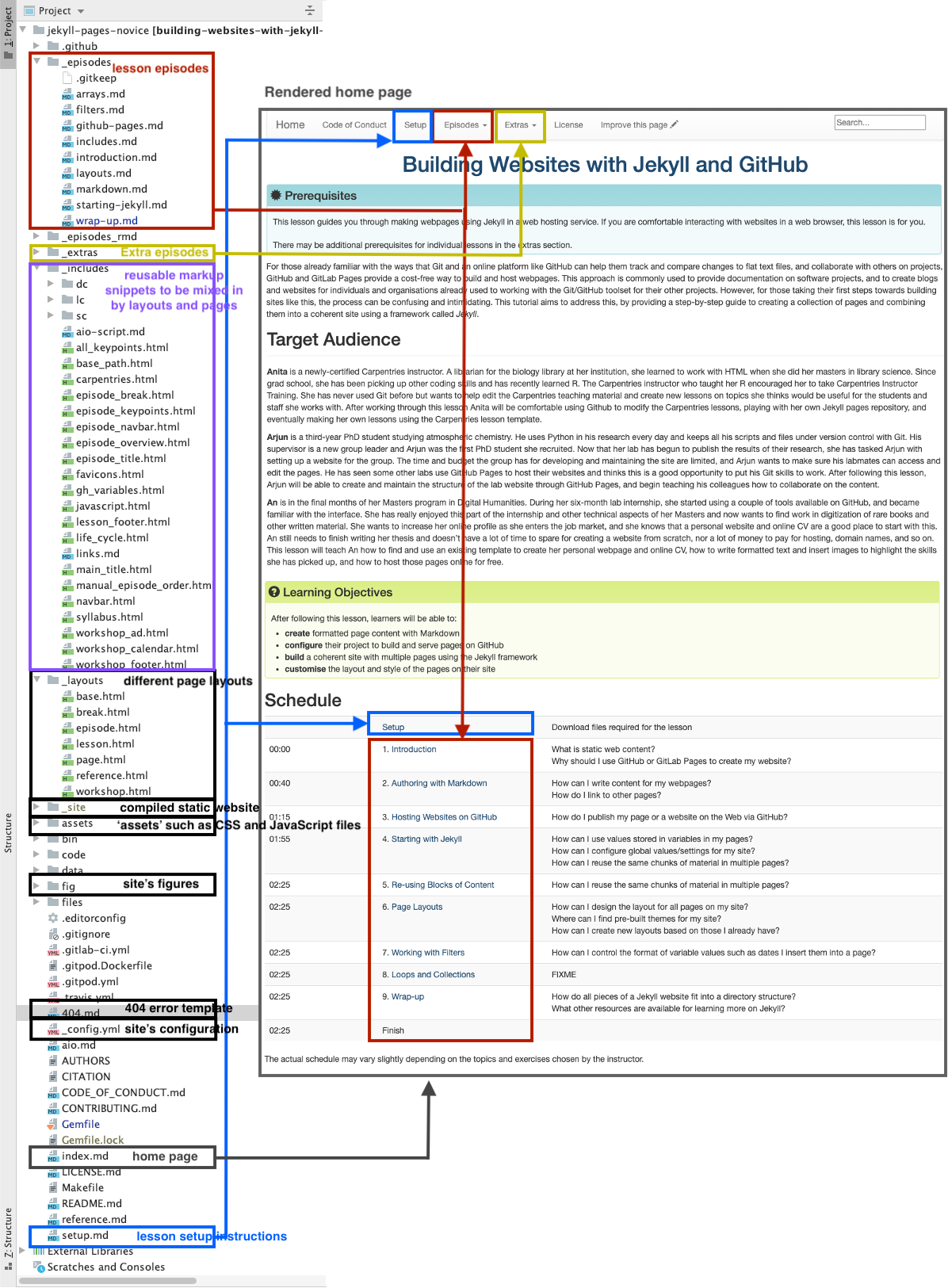
Reusing The Carpentries Jekyll Lesson Theme
Reusing the lesson template to create a new lesson can be achieved by copying the theme repository and customising it by adding your episodes in the appropriate place. The template is published under the Creative Commons Attribution 4.0 license, which means you are free to re-use and modify it however you like as long as you acknowledge the original source. You will often find that other Jekyll themes are available with a similarly permissive license, but you should always check the terms to make sure you understand what you can and cannot do with your chosen theme.
Further Resources
Below are some recommended resources to help you continue learning about Jekyll websites:
- W3C Schools HTML tutorial
- W3C Schools CSS tutorial
- Github-flavored Markdown info page
- Getting started with GitHub Pages from GitHub Docs
- JekyllRB - the ultimate source of Jekyll resources
- Jekyll guides
- Jekyll themes
Key Points
Jekyll is a powerful static site generator behind GitHub Pages that supports a high degree of reuse and separation of content and presentation.
Learning more on Jekyll themes will enable you to create complex and professional-looking websites.