
Writing Scripts and Working with Data
Last updated on 2026-02-20 | Edit this page
Overview
Questions
- How can we automate a commonly used set of commands?
Objectives
- Use the
nanotext editor to modify text files. - Write a basic shell script.
- Use the
bashcommand to execute a shell script. - Use
chmodto make a script an executable program.
Writing files
We’ve been able to do a lot of work with files that already exist, but what if we want to write our own files. We’re not going to type in a FASTA file, but we’ll see as we go through other tutorials, there are a lot of reasons we’ll want to write a file, or edit an existing file.
To add text to files, we’re going to use a text editor called Nano.
We’re going to create a file to take notes about what we’ve been doing
with the data files in
~/dc_workshopd/data/untrimmed_fastq.
This is good practice when working in bioinformatics. We can create a
file called a README.txt that describes the data files in
the directory or documents how the files in that directory were
generated. As the name suggests it’s a file that we or others should
read to understand the information in that directory.
Let’s change our working directory to
~/dc_workshop/data/untrimmed_fastq using cd,
then run nano to create a file called
README.txt:
You should see something like this:
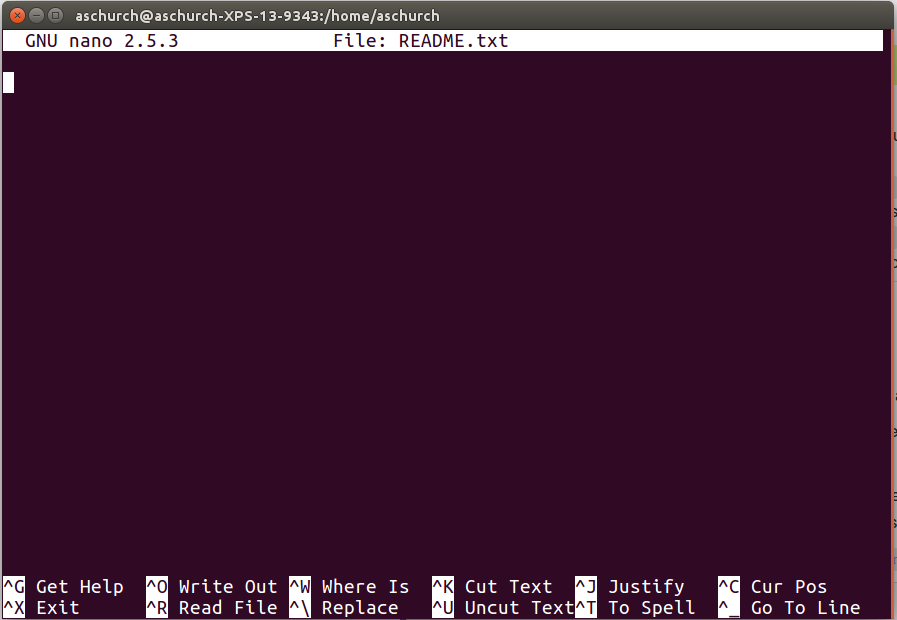
The text at the bottom of the screen shows the keyboard shortcuts for
performing various tasks in nano. We will talk more about
how to interpret this information soon.
Which Editor?
When we say, “nano is a text editor,” we really do mean
“text”: it can only work with plain character data, not tables, images,
or any other human-friendly media. We use it in examples because it is
one of the least complex text editors. However, because of this trait,
it may not be powerful enough or flexible enough for the work you need
to do after this workshop. On Unix systems (such as Linux and Mac OS X),
many programmers use Emacs or Vim (both of which require more time to
learn), or a graphical editor such as Gedit. On Windows, you may
wish to use Notepad++.
Windows also has a built-in editor called notepad that can
be run from the command line in the same way as nano for
the purposes of this lesson.
No matter what editor you use, you will need to know where it searches for and saves files. If you start it from the shell, it will (probably) use your current working directory as its default location. If you use your computer’s start menu, it may want to save files in your desktop or documents directory instead. You can change this by navigating to another directory the first time you “Save As…”
Let’s type in a few lines of text. Describe what the files in this
directory are or what you’ve been doing with them. Once we’re happy with
our text, we can press Ctrl-O (press the
Ctrl or Control key and, while holding it down,
press the O key) to write our data to disk. You’ll be asked
what file we want to save this to: press Return to accept the
suggested default of README.txt.
Once our file is saved, we can use Ctrl-X to quit the editor and return to the shell.
Control, Ctrl, or ^ Key
The Control key is also called the “Ctrl” key. There are various ways in which using the Control key may be described. For example, you may see an instruction to press the Ctrl key and, while holding it down, press the X key, described as any of:
Control-XControl+XCtrl-XCtrl+X^XC-x
In nano, along the bottom of the screen you’ll see
^G Get Help ^O WriteOut. This means that you can use
Ctrl-G to get help and
Ctrl-O to save your file.
Now you’ve written a file. You can take a look at it with
less or cat, or open it up again and edit it
with nano.
Exercise 1(Begginer): Edit a file with nano
Open README.txt and add the date to the top of the file
and save the file.
Writing scripts
A really powerful thing about the command line is that you can write scripts. Scripts let you save commands to run them and also lets you put multiple commands together. Though writing scripts may require an additional time investment initially, this can save you time as you run them repeatedly. Scripts can also address the challenge of reproducibility: if you need to repeat an analysis, you retain a record of your command history within the script.
One thing we will commonly want to do with sequencing results is pull out bad reads and write them to a file to see if we can figure out what’s going on with them. We’re going to look for reads with long sequences of N’s like we did before, but now we’re going to write a script, so we can run it each time we get new sequences, rather than type the code in by hand each time.
Bad reads have a lot of N’s, so we’re going to look for
NNNNNNNNNN with grep. We want the whole FASTQ
record, so we’re also going to get the one line above the sequence and
the two lines below. We also want to look in all the files that end with
.fastq, so we’re going to use the *
wildcard.
We’re going to create a new file to put this command in. We’ll call
it bad-reads-script.sh. The sh isn’t required,
but using that extension tells us that it’s a shell script.
Type your grep command into the file and save it as
before. Be careful that you did not add the $ at the
beginning of the line.
Now comes the neat part. We can run this script. Type:
It will look like nothing happened, but now if you look at
scripted_bad_reads.txt, you can see that there are now
reads in the file.
Exercise 2(Intermediate): Edit a script
We want the script to tell us when it’s done.
Versioning scripts with Git and GitHub
A good coding practice is to keep versions of the scripts you code. That way, you can control what it is functional on each version, and you can always come back to older versions if something goes wrong with the new ones. Git is a version control system that helps you keep track of the entire history of the scripts that you are working on and facilitates collaboration on projects. GitHub is a web-based service for version control and online collaboration. It is a hosting service for Git repositories, and is a handy platform for backup of software code and files. GitHub acts as a social networking site for software developers where they can manage projects and build their portfolio.
Git is alradey installed in you machine, let’s have a look at its help command:
The first lines of the git help are displayed below:
OUTPUT
usage: git [--version] [--help] [-C <path>] [-c name=value]
[--exec-path[=<path>]] [--html-path] [--man-path] [--info-path]
[-p | --paginate | --no-pager] [--no-replace-objects] [--bare]
[--git-dir=<path>] [--work-tree=<path>] [--namespace=<name>]
<command> [<args>]
These are common Git commands used in various situations:
start a working area (see also: git help tutorial)
clone      Clone a repository into a new directory
To learn more about Git and GitHub platforms for version control and collaborative development, check the Software Carpentries website https://swcarpentry.github.io/git-novice/
Making the script into a program
We had to type bash because we needed to tell the
computer what program to use to run this script. Instead we can turn
this script into its own program. We need to tell it that it’s a program
by making it executable. We can do this by changing the file
permissions. We talked about permissions in an
earlier episode.
First, let’s look at the current permissions.
OUTPUT
-rw-rw-r-- 1 dcuser dcuser 0 Oct 25 21:46 bad-reads-script.shWe see that it says -rw-r--r--. This shows that the file
can be read by any user and written to by the file owner (you). We want
to change these permissions so that the file can be executed as a
program. We use the command chmod like we did earlier when
we removed write permissions. Here we are adding (+)
executable permissions (+x).
Now let’s look at the permissions again.
OUTPUT
-rwxrwxr-x 1 dcuser dcuser 0 Oct 25 21:46 bad-reads-script.shNow we see that it says -rwxr-xr-x. The x’s
that are there now tell us we can run it as a program. So, let’s try it!
We’ll need to put ./ at the beginning so the computer knows
to look here in this directory for the program.
The script should run the same way as before, but now we’ve created our very own computer program!
You will learn more about writing scripts in a later lesson.
It is good practice to keep any large files compressed while you are
not using them. In this way you save storage space, you will see that
you will appreciate it when you advance in your analysis. So, since we
will not use the FASTQ files for now, let’s compress them. And run
ls -lh to confirm that they are compressed.
BASH
$ gzip ~/dc_workshop/data/untrimmed_fastq/*.fastq
$ ls -lh  ~/dc_workshop/data/untrimmed_fastq/*.fastq.gz
OUTPUT
total 428M
-rw-r--r-- 1 dcuser dcuser  24M Nov 26 12:36 JC1A_R1.fastq.gz
-rw-r--r-- 1 dcuser dcuser  24M Nov 26 12:37 JC1A_R2.fastq.gz
-rw-r--r-- 1 dcuser dcuser 179M Nov 26 12:44 JP4D_R1.fastq.gz
-rw-r--r-- 1 dcuser dcuser 203M Nov 26 12:51 JP4D_R2.fastq.gz
Moving and downloading data
So far, we’ve worked with data that is pre-loaded on the instance in the cloud. Usually, however, most analyses begin with moving data onto the instance. Below we’ll show you some commands to download data onto your instance, or to move data between your computer and the cloud.
Getting data from the cloud
There are two programs that will download data from a remote server
to your local (or remote) machine: wget and
curl. They were designed to do slightly different tasks by
default, so you’ll need to give the programs somewhat different options
to get the same behaviour, but they are mostly interchangeable.
wgetis short for “world wide web get”, and it’s basic function is to download web pages or data at a web address.cURLis a pun, it is suppose to be read as “see URL”, so it’s basic function is to display webpages or data at a web address.
Which one you need to use mostly depends on your operating system, as most computers will only have one or the other installed by default.
Let’s say you want to download some data from Ensembl. We’re going to
download a very small tab-delimited file that just tells us what data is
available on the Ensembl bacteria server. Before we can start our
download, we need to know whether we’re using curl or
wget.
To see which program you have type:
which is a BASH program that looks through everything
you have installed, and tells you what folder it is installed to. If it
can’t find the program you asked for, it returns nothing, i.e. gives you
no results.
On Mac OSX, you’ll likely get the following output:
OUTPUT
/usr/bin/curlOUTPUT
$This output means that you have curl installed, but not
wget.
Once you know whether you have curl or wget
use one of the following commands to download the file:
or
BASH
$ cd
$ curl -O ftp://ftp.ensemblgenomes.org/pub/release-37/bacteria/species_EnsemblBacteria.txt
Since we wanted to download the file rather than just view
it, we used wget without any modifiers. With
curl however, we had to use the -O flag, which
simultaneously tells curl to download the page instead of
showing it to us and specifies that it should save the
file using the same name it had on the server:
species_EnsemblBacteria.txt
It’s important to note that both curl and
wget download to the computer that the command line belongs
to. So, if you are logged into AWS on the command line and execute the
curl command above in the AWS terminal, the file will be
downloaded to your AWS machine, not your local one.
Moving files between your laptop and your instance
What if the data you need is on your local computer, but you need to get it into the cloud? There are also several ways to do this, but it’s always easier to start the transfer locally. This means if you’re typing into a terminal, the terminal should not be logged into your instance, it should be showing your local computer. If you’re using a transfer program, it needs to be installed on your local machine, not your instance.
Transferring data between your local machine and the cloud
Uploading data to your virtual machine with scp
scp stands for ‘secure copy protocol’, and is a widely
used UNIX tool for moving files between computers. The simplest way to
use scp is to run it in your local terminal, and use it to
copy a single file:
Note that you are always running scp locally, but that
doesn’t mean that you can only move files from your local
computer. A command like:
To move it back, you just re-order the to and from fields:
Uploading data to your virtual machine with scp
- Open the terminal and use the
scpcommand to upload a file (e.g. local_file.txt) to the dcuser home directory:
Downloading data from your virtual machine with
scp
Let’s download a text file from our remote machine. You should have a file that contains bad reads called ~/data/untrimmed_fastq/scripted_bad_reads.txt.
Tip: If you are looking for another (or any really) text file in your home directory to use instead try
- Download the bad reads file in ~/data/scripted_bad_reads.txt to your home ~/Download directory using the following command (make sure you use substitute dcuser@ ip.address with your remote login credentials):
BASH
$ scp dcuser@ip.address:/home/dcuser/dc_workshop/data/untrimmed_fastq/scripted_bad_reads.txt. ~/Downloads- Scripts are a collection of commands executed together.
- Transferring information to and from virtual and local computers.